My Gateway Is Showing Offline
Overview
The Shipshape gateway is the hub of your monitoring system. It connects every sensor and smart plug in your home to SAM and the Shipshape cloud. When it goes offline, every device in the app shows "Offline" and SAM gets no readings, so it cannot alert you about your sensors. You may also hear the gateway called the hub, controller or base station. It usually sits next to your internet router.
Your appliances keep working normally while the gateway is offline. Your HVAC runs, your water heater heats and your sump pump pumps. What stops is the monitoring: nothing is watching those appliances until the gateway reconnects.
First, give it an hour. Most gateway drops fix themselves within an hour, for example after a short internet or power blip. If it has been offline longer than that, work through the steps below in order. They start with the simplest checks.
Do not count on an app notification telling you the gateway went offline. If something important depends on it, such as a sump pump during heavy rain, check it by hand until the gateway is back.
Gateway or Just One Device? Start Here
Open the Shipshape app and check two places:
- The Alerts tab.
- The Manage Network screen (Manager > Manage Network), which lists your gateway and devices.
Then find what you see in this table:
| What you see | Likely cause | Where to go |
|---|---|---|
| The gateway is offline | No internet or no power at the gateway | The steps in this article |
| "Gateway Can't Connect to the Cloud Server" | The gateway is on your network but cannot reach Shipshape | Gateway Can't Connect to the Cloud Server |
| Several devices offline, gateway online | A range extender, or the gateway | If Only Some Devices Are Offline |
| One device offline | Its battery, power or signal | If Only Some Devices Are Offline |
| Devices in one area offline | Out of range, or something blocking the signal | If Devices Keep Dropping Offline |
While the Gateway Is Offline
- Your appliances keep working. A gateway being offline does not change how your appliances run. If the power is out in your home, though, your appliances are likely affected too. See What Happens During a Power Outage.
- Shipshape receives no data from your home. No readings and no alerts reach Shipshape from any of your sensors until the gateway is back online.
- When it reconnects, Shipshape asks each device for its current reading, so the app catches up within a few minutes.
Common Causes
- Internet outage. Your provider lost service, so the gateway cannot reach the cloud.
- New or replaced router. Your provider swapped your router or modem, or someone changed its settings. This is one of the most common causes of a gateway that stays offline.
- Ethernet cable came loose. The cable was bumped, pulled tight, or its small plastic latch broke.
- Power loss to the gateway. A tripped breaker, an unplugged adapter, or a power strip turned off.
- Router restart or update. The router restarted before the gateway, or an automatic update changed a setting.
- A worn-out port or outlet. The router port the gateway uses, or the wall outlet it is plugged into, has stopped working.
Step-by-Step Troubleshooting
Work through these in order. After each step, give the gateway a few minutes and check the app.
Step 1: Check Your Internet
- Connect your phone to your home Wi-Fi (not cellular data).
- Open a web browser and load any website.
- If the website loads, your internet works. Go to Step 2.
- If it does not load, your internet is down. Wait for it to return, or restart your modem and router (Step 6). The gateway reconnects on its own once the internet is back.
Step 2: Check the Gateway's Power
The gateway has two connections: the Ethernet cable to your router and its power cable. When it shows offline, it has lost at least one of them.
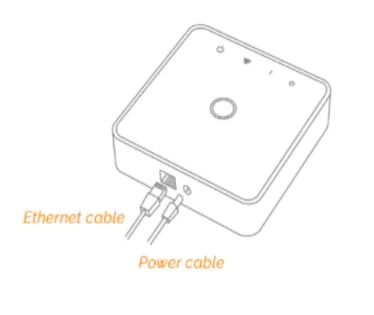
- Look at the gateway. Is a light on? (A square Shipshape 1st Generation gateway has 4 lights on top.) If a light is on, the gateway has power and the problem is more likely the internet or the cable. If no light is on, it has no power.
- Make sure it is using its own power adapter plugged into a wall outlet, not a USB port on a router, TV or computer, and not a thin extension cord.
- Check that the outlet works by plugging in a lamp or phone charger. Check any power strip, and look for a tripped breaker or GFCI outlet.
If the light stays off on an outlet you know works, contact support.
Step 3: Check the Ethernet Cable
- At the router: the cable should be in one of the LAN ports. Not the WAN or Internet port, and not the smaller phone or voice jack.
- Router, not modem: if you have a separate modem from your internet provider, the gateway goes into the router, never the modem. Gateway Won't Come Online During Installation explains how to tell them apart.
- At both ends: unplug the cable and push it back in until it clicks. If the small plastic latch is broken, the cable can slip out. Replace it.
- Make sure the cable is not pulled tight. A cable stretched between the router and the gateway can work loose.
- If there is a switch or splitter between the router and the gateway, make sure it is plugged in and powered. These are often left unplugged after a router is replaced.
Step 4: Note the Light by the Cable Port
Look at the small light next to the Ethernet port on the gateway and on the router. Is it blinking, solid or off? Write it down. It helps our support team tell a gateway problem from a network problem.
A light on does not mean everything is working, so keep going with the steps below.
Step 5: Restart the Gateway
- Unplug the gateway's power.
- Wait 10 seconds.
- Plug it back in.
- Check the app after 3 minutes, and again after 10 minutes.
If the gateway is updating, leave it plugged in. After a restart it may install a software update. That usually takes 2 to 3 minutes, and up to 20 minutes on a slow internet connection. Unplugging it during an update can make the update start over or get stuck.
Step 6: Restart Your Router, Then the Gateway
- Unplug your router. If you have a separate modem, unplug that too.
- Wait 30 seconds.
- Plug the modem back in first. Wait 2 minutes.
- Plug the router back in. Wait 2 minutes.
- Check that a website loads on your phone.
- Now restart the gateway again (Step 5). The gateway needs the router to be fully back before it can reconnect.
Step 7: Look for the Gateway in Your Router's Device List
Most routers have an app or a web page that lists every connected device. Look for the gateway there, by name or by the MAC address printed on its label.
- AT&T routers (BGW series): tap Clear and Rescan for Devices first. The list can be out of date.
- Mesh systems (eero, Google Wifi and others): check the app for a new device waiting for your approval.
- A network scanner app, such as Net Analyzer, can also list the devices on your network.
- If you cannot find this screen, a family member or your Shipshape pro can help.
If the gateway does not appear in the list, tell support. It is the most useful thing we can know.
Step 8: Try a Different Port and Cable
- Move the cable to a different LAN port on your router.
- If you have a spare Ethernet cable, swap it in.
- Wait 3 minutes after each change and check the app.
If Your Router Changed Recently
If the gateway went offline around the time your router was replaced, updated or had its settings changed, a security setting may be blocking it. Router settings that can block or hide a device include MAC filtering, firewall filters, built-in security features, parental controls and device isolation.
You do not need to change these yourself. Your internet provider's support line, your Shipshape pro, or someone comfortable with your router can check them. Tell them the gateway's MAC address, printed on its label.
If the app shows "Gateway Can't Connect to the Cloud Server", the gateway is on your network but something is stopping it from reaching Shipshape. See Gateway Can't Connect to the Cloud Server.
Do Not Factory Reset the Gateway
A factory reset erases the gateway's connection to all of your sensors, and every device then has to be set up again in person. Only reset if Shipshape support asks you to.
If Only Some Devices Are Offline
If the gateway is online but one or more devices are not, the problem is between those devices and the gateway: a battery, power to the device, or its wireless signal. My Appliance Shows Offline in the App covers this in full. Here are the quick checks for each device. Pairing a device again is usually a job for your installer.
Range Extender
The range extender passes the signal between distant sensors and the gateway. If it goes offline, several devices behind it can go offline too.
- Check its light. Slow breathing white means it is not paired. Solid white means it is paired. Fast flashing means it is pairing.
- Check its power. It must be plugged straight into a wall outlet that is always on, not one controlled by a light switch, in a dry indoor spot.
- Test its signal. Press and hold the Z-Wave button to test the signal to the gateway. Let go before 20 seconds: holding it that long resets it. If the signal is weak, move the extender closer to the gateway, away from large metal objects and the breaker panel.
- Pair it again. Put the gateway into pairing mode, then tap the Z-Wave button once. The light flashes for up to 30 seconds and gets brighter when it has paired. If it does not, try again.
- Factory reset only as a last resort: hold the Z-Wave button for 20 seconds. See Factory Resetting Aeotec Devices.
More in Aeotec Range Extender 7.
Water Leak Sensor
- Check the battery. The Water Sensor 7 Pro takes one ½ AA battery. Do not use a rechargeable one, and check it is the right way round. Which battery to buy is in Water Leak Sensor Offline or Low Battery.
- Wake it up and check its range. Take off the cover and press the tamper switch once. One red blink means it can reach the gateway. Three red blinks mean it is out of range: move it closer to the gateway or add a range extender. Don't hold the switch down, because holding it for 10 seconds resets the sensor.
- Pair it again. With the gateway in pairing mode, click the tamper switch 3 times quickly. The light turns green for 3 seconds when it pairs.
- Reset it only if your installer or support asks. The steps are in Factory Resetting Aeotec Devices.
Smart Plug (Smart Switch 6)
- Check its power. Plug it straight into a wall outlet, in a dry place.
- Read its light. Solid green for about 2 seconds means it has just paired. A rainbow means it is not paired. Purple means the switch is off. Red, yellow and green blinking means a signal test is running.
- Test its signal. Hold the Action button until the light turns purple, then let go. The light blinks red (poor signal), yellow (fair) or green (good).
- Pair it again. With the gateway in pairing mode, press the Action button once. For secure pairing, press it twice quickly.
- Factory reset: hold the Action button for 20 seconds, until the light turns green and then shows a rainbow. See Factory Resetting Aeotec Devices.
More in My Smart Power Plug Shows Offline and Aeotec Smart Switch 6.
If Devices Keep Dropping Offline
A device that goes offline again and again usually has a weak signal to the gateway. Common reasons:
- A new refrigerator, metal shelving or another large metal object between the device and the gateway
- Renovation work that added walls or moved things around
- A device in the garage, or far from the gateway
Lasting fixes: add a range extender between the device and the gateway, move the device, or move the gateway to a more central spot (it needs an Ethernet cable to your router, so this can mean a longer cable). Your installer can help with any of these.
When to Contact Support
- The gateway is still offline after these steps.
- The power light stays off on an outlet that works.
- The gateway does not appear in your router's device list.
- Your internet provider or router changed and the gateway has not reconnected since.
- The gateway goes offline more than once a week with no obvious cause.
- A device stays offline after these steps, or several sensors stay offline.
- You keep getting offline alerts.
- The offline device is somewhere you cannot safely reach, such as a crawl space, attic or utility room.
Have this ready:
- Your home address or account name, and the email you sign in with
- When it went offline, if you know
- Your internet provider, and your router's make and model (on its label)
- Whether the light by the gateway's cable port is blinking, solid or off
- Whether the gateway shows in your router's device list
- Which steps you have already tried
Preventing Gateway Offline Issues
- Secure the cable. Use a cable clip so it cannot be bumped loose, and leave a little slack.
- Keep the original power adapter and plug it straight into a wall outlet or surge protector.
- Consider a battery backup (UPS) for your router and gateway to ride through short power outages.
- Give it air. Do not enclose the gateway in a tight cabinet or stack things on top of it.
- Tell your pro when your internet provider or router changes. A new router is a common reason a gateway stays offline.
- Keep devices in range. Avoid large metal objects between the gateway and your sensors, and add a range extender for a garage or attic.
- Use outlets that are always on for range extenders and smart plugs, not ones controlled by a light switch.
- Replace sensor batteries about every 2 years.
Quick Reference
| Symptom | Likely Cause | What to Try |
|---|---|---|
| All devices offline, internet down | Internet outage | Wait, or restart modem and router |
| Gateway light off | No power | Check the adapter, outlet and breaker |
| Offline since a router change | New router or settings | Restart router then gateway; ask your provider or pro to check router settings |
| Gateway not in router's device list | Cable, port, or router blocking it | Reseat cable, try another port, contact support |
| Offline after a power outage | Router came back after the gateway | Restart the gateway again |
| Frequent short disconnections | Loose cable or router issue | Secure the cable, consider a UPS, contact support |
| "Gateway Can't Connect to the Cloud Server" | Router or network blocking the connection to Shipshape | See Gateway Can't Connect to the Cloud Server |
| Gateway online, one device offline | Battery, power or signal | Check that device's battery, power and light |
Pro Detail
How Shipshape Checks That a Gateway Is Online
The gateway does not tell Shipshape when it goes offline. Shipshape finds out by asking. About every 5 minutes, Shipshape's servers send each gateway a short message (a heartbeat) and wait for its reply. If the gateway does not answer, they ask again, up to 3 times in all, before marking it offline. A missed reply only counts when Shipshape has confirmed its own messaging system was delivering at the time, so a problem on Shipshape's side does not mark your gateway offline.
This is why the app can take a few minutes to show a gateway as offline, or as back online.
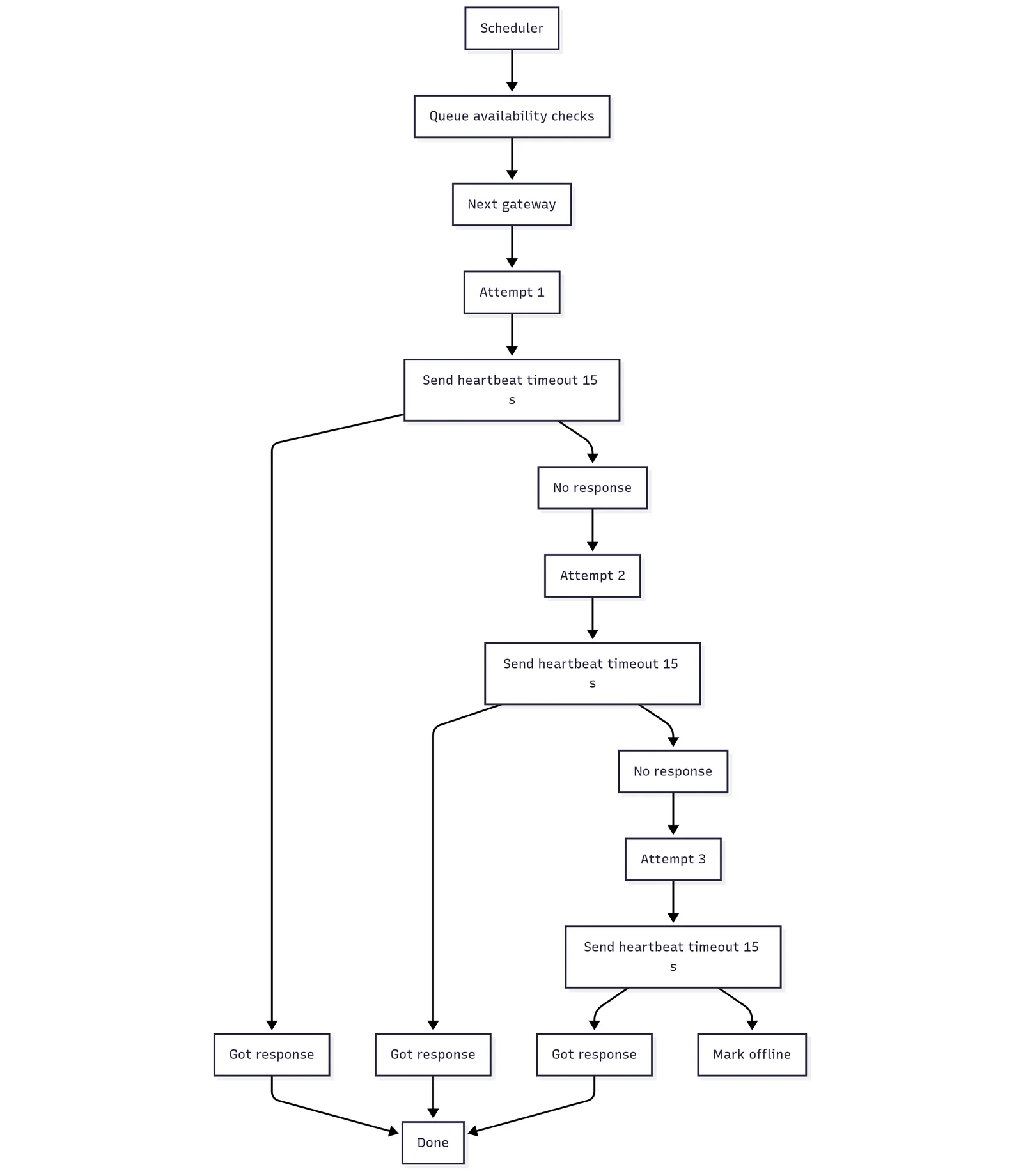
The gateway sends its data straight to Shipshape over a secure MQTT connection. What that connection needs from the network is in Gateway Can't Connect to the Cloud Server.
Checking the Gateway with AeotecFind
AeotecFind is Aeotec's web tool for checking an Aeotec gateway on your network. From a phone or computer on the same home network as the gateway:
- Open AeotecFind.
- Confirm that it finds the gateway, and note its device type, IP address, firmware version and update status.
- If the update looks stuck, click Initial Update, wait 5 minutes and refresh the page.
For a Gateway That Keeps Going Offline
- Check that the network allows the gateway's connection to Shipshape (see Gateway Can't Connect to the Cloud Server).
- Check that DNS works on the network.
- Scan the network (router device list or a scanner app such as Net Analyzer) and confirm the gateway is visible.