Aeotec Smart Switch 6 (ZW096)
Homeowner Summary
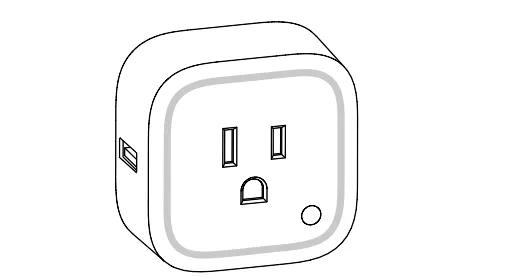
The Aeotec Smart Switch 6 (model ZW096) is a plug-in smart switch that sits between a wall outlet and an appliance. It turns the appliance on or off on command and measures how much power the appliance is drawing, which lets Shipshape watch equipment like sump pumps, dehumidifiers, and water heaters for unusual behavior. It's a Z-Wave Plus device on Aeotec's Gen5 platform.
This is one of the original devices in many Shipshape installs. Newer installations use the current smart plug, and Shipshape is replacing ZW096 units under warranty with the newer ZW110 where applicable — but plenty of Smart Switch 6 units are still in the field and fully supported. If your home has one, this guide covers what it does, how it's paired, and how to read its status light.
Indoor use only. The Smart Switch 6 is rated for indoor, dry locations only. Do not use it in damp, moist, or wet locations.
How It Works
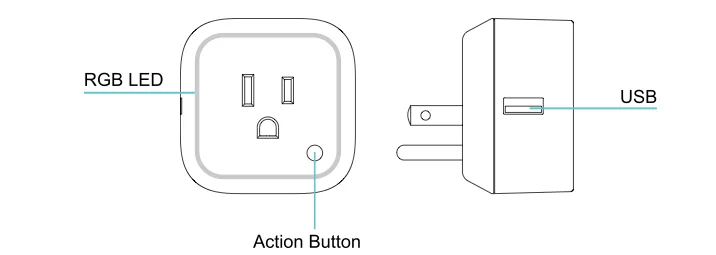
The Smart Switch 6 plugs into a standard wall outlet, and your appliance plugs into it. Internally it contains a relay (to switch the load on and off) and an energy-monitoring circuit (to measure watts, voltage, and current). It reports those readings to your Shipshape gateway over Z-Wave, so SAM can tell whether the plugged-in appliance is running normally, drawing too much power, or has stopped.
Maximum amperage depends on the regional version (printed on the device label):
- 10 A — ZW096-B09
- 13 A — ZW096-C07, ZW096-C16
- 15 A — ZW096-B14, ZW096-A02
Status LED
By default the Smart Switch 6 runs in Energy mode, where the LED color reflects how much power the plugged-in load is drawing (US version):
| Output | LED |
|---|---|
| 0–900 W | Green |
| 900–1600 W | Yellow |
| 1600–2000 W | Red |
When the switch is off, the LED is light purple. Your installer can also set the LED to a night-light mode, or to turn off 5 seconds after each change.
During pairing, a flashing green LED means it's joining the network; a solid green LED for ~2 seconds confirms a successful pair, and a rainbow gradient means the pairing didn't complete.
Setup Guide
In most homes your installer pairs the Smart Switch 6 for you. To pair it to an existing gateway manually:
-
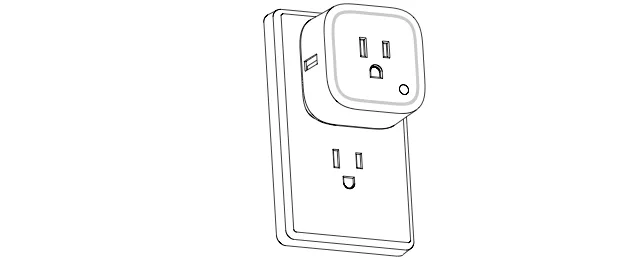
Plug the Smart Switch 6 into a wall outlet.
-
Put your gateway into Z-Wave pair / inclusion mode (see your gateway's instructions).
-
Press the Action Button on the switch once — the LED flashes green.
-
A solid green LED for ~2 seconds confirms it joined. A rainbow gradient means it didn't — retry from step 2.
Removing It from Your Z-Wave Network
You can remove (unpair) the Smart Switch 6 from your network at any time, for example before moving it to another gateway.
- Put your gateway into Z-Wave unpair (exclusion) mode.
- Press the Action Button on the switch.
- A rainbow gradient on the LED means it was removed. If the LED turns green or purple instead, removal failed. Try again from step 1.
To factory reset a Smart Switch 6 (for example, if it won't pair or you're moving it to a new gateway), see Factory Resetting Aeotec Devices.
Maintenance Guide
- Keep it indoors and dry. Never use it in a bathroom, outdoors, or anywhere it can get wet. Keep it away from open flames, direct heat and direct sunlight.
- Match the load to the rating. Don't exceed the device's amperage rating for your version.
- If it shows offline, see My Smart Power Plug Shows Offline.
Pro Detail
Gateway compatibility
If you're adding a Smart Switch 6 to a Z-Wave gateway yourself, check Aeotec's list of compatible gateways first. If your controller is an Aeotec Z-Stick or Minimote, follow Aeotec's own steps for that controller; for any other gateway, use the "add device" steps in its manual.
LED modes (parameter 81)
| Parameter 81 (1 byte) | LED mode |
|---|---|
| 0 (default) | Energy mode: the color follows the load's power |
| 1 | Momentary: the LED turns off 5 seconds after a change |
| 2 | Night light: brightness and color are configurable |
LED colors in Energy mode, other regions
| Version | Green | Yellow | Red |
|---|---|---|---|
| US | 0–900 W | 900–1600 W | 1600–2000 W |
| AU | 0–1000 W | 1000–2000 W | 2000–2500 W |
| EU | 0–2000 W | 1500–2500 W | 2500–3000 W |
The EU version takes E/F plugs only.
Shipshape Integration
Shipshape uses the Smart Switch 6's power readings to monitor the appliance plugged into it. A sump pump that stops drawing power, a dehumidifier that runs constantly, or a water heater pulling abnormal current all show up as changes in the power signal — and SAM can alert you. If a Smart Switch 6 reports offline, Shipshape flags it so the appliance it controls doesn't go unmonitored.