Gateway Won't Come Online During Installation
Overview

Most gateways come online within a few minutes of being plugged in. When one doesn't, the cause is usually one of three things: the gateway is still finishing its first-time setup, it's plugged into the wrong box or port, or the router is holding it back.
This guide covers them in the order that saves the most time on site. The short version: plug the gateway in first, give a brand-new one up to 15 minutes, restart it once, then call Shipshape support before swapping it.
First: A New Gateway Can Take Up to 15 Minutes
The first time a new gateway powers on, it does more than boot. It checks for a software update, installs it if there is one, and downloads its connection settings for Shipshape. Usually that takes 2 to 5 minutes. Sometimes it takes 15 or more, for example on a slow internet connection.
While that happens, the gateway can look ready when it isn't:
- The lights on the ethernet port (on the gateway and on the router) only mean the cable is connected. They blink the same way whether or not the gateway has reached Shipshape. Don't read them as "it's working."
- Don't unplug the gateway while it's updating. Cutting power mid-update can make setup start over or get stuck.
Tip for service pros: Plug the gateway into the router and power it on as soon as you arrive, before you start on sensors or appliances. By the time you're ready to add it in the app, its first-time setup is usually done.
If It's Not Online After 15 Minutes
Step 1: Check Where It's Plugged In
The gateway must plug into your router, the box that runs your Wi-Fi, using a regular LAN port.
- If you have a separate modem and router, plug the gateway into the router, never the modem. A modem is usually the box where your internet line comes into the house: a round coax cable (cable internet), a phone line (DSL), or a fiber line. Most modems only give an internet connection to one device, which is the router. A gateway plugged into the modem will usually never come online, even though its lights blink.
- Avoid the port marked WAN or Internet on the router (often yellow or a different color). That's the router's own connection to the modem.
- Mesh Wi-Fi (NETGEAR Orbi, eero, Google Nest Wifi, etc.): use a LAN port on the main unit, the one connected to the modem, not a satellite or extender.
- If your internet provider gave you one box that is both modem and router, use any open LAN port on it.
- No open LAN port? Add a network switch (see "Try a Network Switch" below).
Not sure which box is which? In a typical setup, the internet line comes into the modem, one ethernet cable runs from the modem to the router, and the gateway plugs into the router:
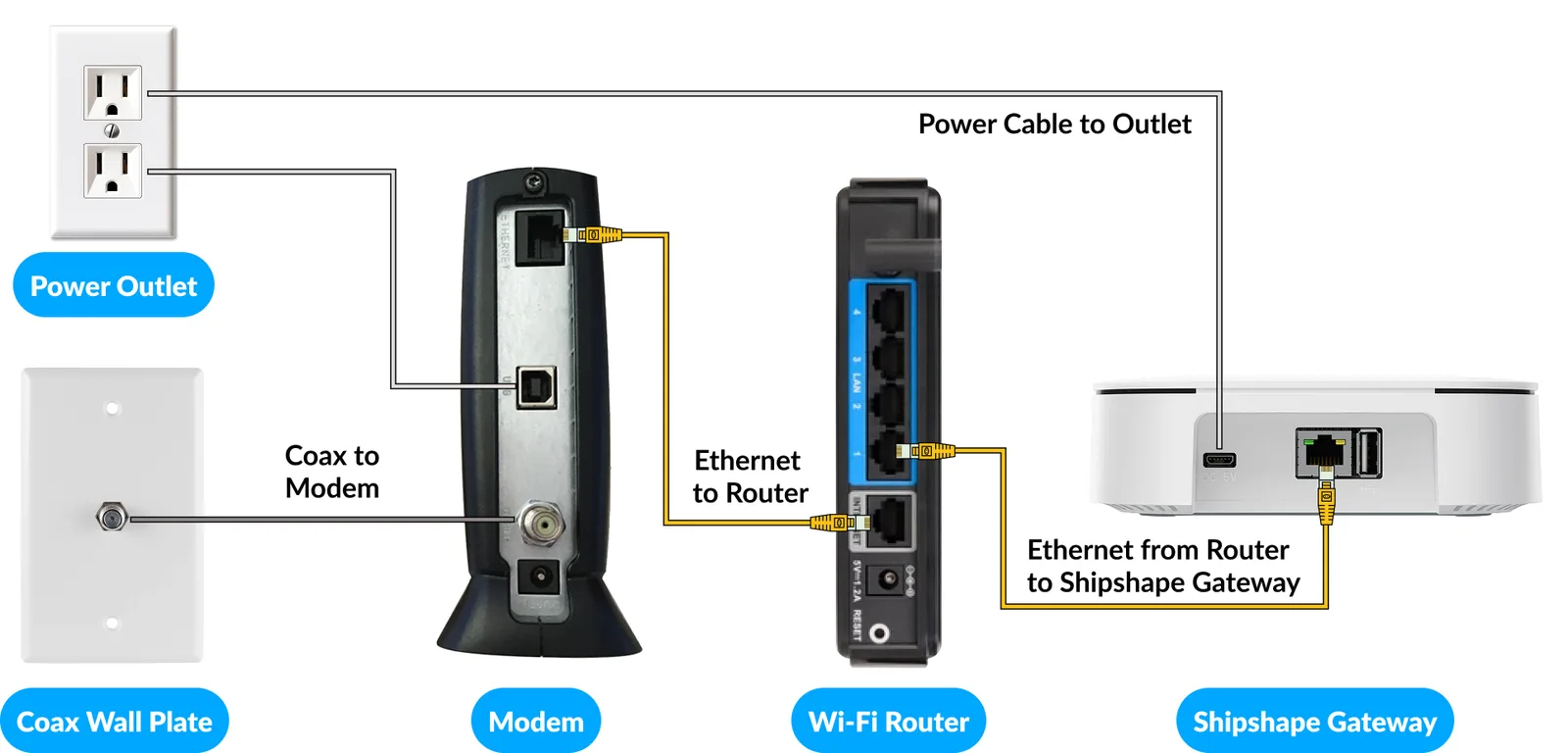
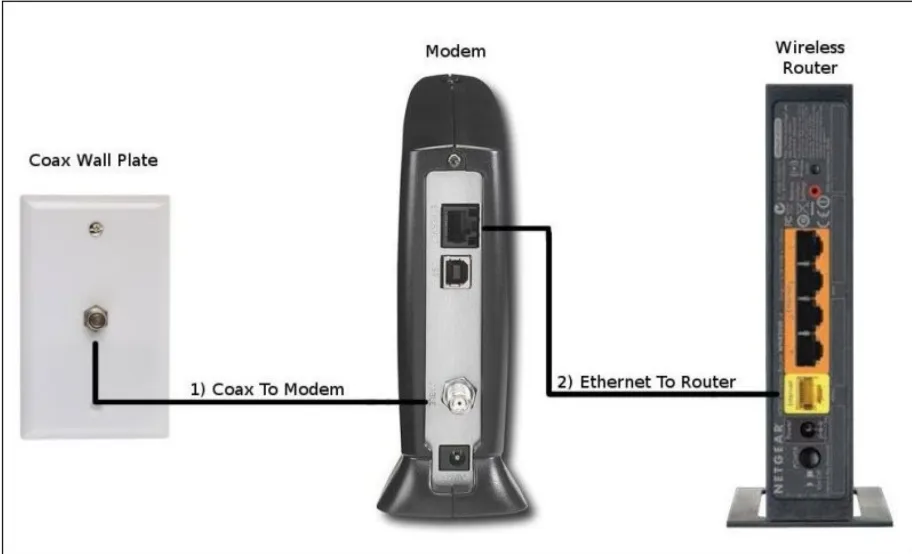
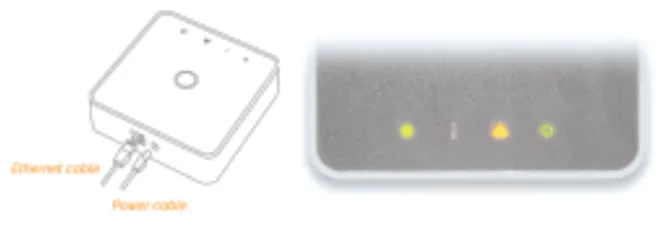
Both cables must be plugged in for the gateway to work: the ethernet cable and the power cable.
Step 2: Restart the Gateway Once
- Unplug the gateway's power.
- Wait 10 seconds.
- Plug it back in.
- Wait 5 minutes before checking the app.
Watch the lights when it powers back on. If they come on for a second and then go dark, see "When to Swap the Gateway" below.
Step 3: Make Sure That Port Has Internet
The fastest test: unplug the gateway's ethernet cable and plug it into a laptop. If the laptop gets internet over that cable, the network is fine. If it doesn't, try another LAN port or another cable, then plug the gateway back in and restart it.
If no laptop is handy, check that your phone can browse the web on the home Wi-Fi. If the internet is down, the gateway can't come online until it's back. Restart the modem and router by unplugging them for 30 seconds and plugging them back in, and call your internet provider if the internet still doesn't come back.
Step 4: Check the Router's Security Settings
Most routers let a new wired device online automatically, with no approval needed. Some have settings that block new devices without telling you. Look in the router's app or admin page for:
- NETGEAR Orbi: Settings > Security > Access Control. If "block new devices" is on, allow the gateway or turn the setting off. NETGEAR Armor can also block traffic; try pausing it.
- eero, Google Nest Wifi and other mesh systems: look for a new device waiting for approval, or a security feature that blocks devices. For eero, see Setting Up Shipshape with Eero Mesh WiFi.
- MAC address filtering: if it's on, add the gateway's MAC address (printed on its label) to the allowed list.
- Parental controls or device blocking can sometimes catch a new device too.
- A firewall or network security system, such as one installed by the audio/visual company that set up the home's network, can block the gateway's connection to Shipshape even though its lights are on. Plug the gateway directly into the main internet router, upstream of the security system, or ask whoever set the system up to let the gateway through.
After any change, restart the gateway (Step 2).
Step 5: Call Shipshape Support Before Swapping
If the gateway is plugged into the right port, the internet works, and it still isn't online, call Shipshape support. Don't swap the gateway yet.
Support can see whether the gateway has reached Shipshape, whether it's still finishing its first-time setup, and can restart it remotely. A remote restart, sometimes two or three, brings most of these gateways online. A gateway that was slow to set up is usually not faulty, so swapping it often just restarts the wait with a new one.
Have this ready:
- The full gateway ID from the label (or at least the last 5 characters)
- Router make and model (for example "Orbi," "eero," or the internet provider's box)
- Internet provider (for example Comcast, AT&T, Spectrum, Sonic)
- What the gateway's lights are doing, and how long it has been plugged in
- What you've already tried
- Screenshots of the lights, or of the advanced checks below if you did them
The gateway ID is printed under the QR code, on the label on the bottom of the gateway or on its box.
When to Swap the Gateway
Swap in a different gateway only if:
- No lights at all, or lights that come on for a second and then go dark, on an outlet you know works, using the gateway's own power adapter. That points to a power or hardware problem.
- Support asks you to after remote restarts haven't worked.
If you swap, tell support the IDs of both gateways so the one you took out can be removed from the home. Otherwise the home keeps showing a gateway that never came online. Keep the removed gateway and let support know you have it. It's often fine and can be checked before it's used again.
Less Common Causes
Unstable Power
Unstable power is common, especially with cheap cords. Plug the gateway into a wall outlet or a quality surge protector, not a basic extension cord, which can cause connection problems. Use the power adapter that came in the box. If the gateway's power light isn't on steadily, try another outlet, and test the outlet with another device.
Router Has Run Out of Addresses
Your router gives each device an address (DHCP). On a network with a lot of devices, it can run out. In the router's admin page, look for the DHCP or connected devices section. Expanding the DHCP range, or disconnecting unused devices, frees up an address for the gateway.
The Router Port Is Disabled
Some routers from internet providers ship with ports disabled or reserved (for example, for a phone line). Try another LAN port and watch for its port light.
Try a Network Switch
If several ports and cables haven't worked, put a small unmanaged network switch between the router and the gateway (router to switch, switch to gateway). This can work around port compatibility problems on some routers.
Advanced Checks
These checks take 10 to 20 minutes. For both, your phone or laptop must be on the same home network as the gateway, not a guest network or cellular data.
See Whether the Gateway Is on the Network
- Install the free Net Analyzer app (iOS or Android; its icon is a blue wave).
- Open it, go to the LAN tab and tap Scan.
- Look for a device named AutoPilot.
- Listed, but still offline in the Shipshape app? The gateway is on your network but not reaching Shipshape. Check the router's security settings (Step 4), and give any update time to finish.
- Not listed? Go back to the cable, port and power checks above.
Check the Gateway on Aeotec Find
- Open Aeotec Find in a web browser.
- If the gateway appears, it shows its type, ID, IP address, software version and update status. If it doesn't appear, recheck the connections.
- If the update status shows the update is stuck, click Initial Update, wait about 5 minutes and refresh the page. Let the update finish completely before you add the gateway in the app.
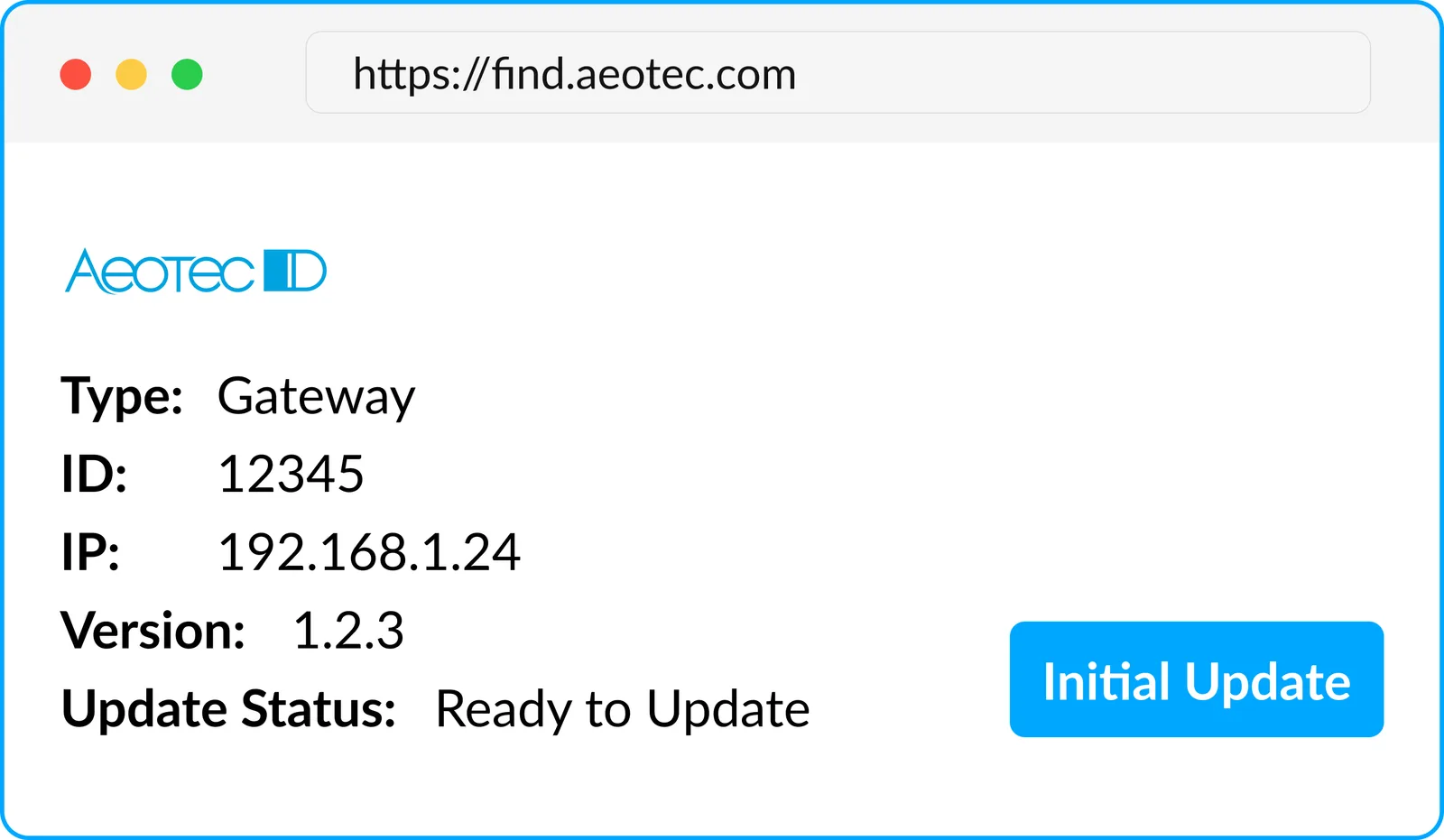
If you see an error code anywhere, write it down for support.
Quick Reference
| What you see | Most likely cause | What to do |
|---|---|---|
| Plugged in less than 15 minutes, not online yet | First-time setup still running | Wait. Don't unplug it while it updates. |
| Port lights blinking, not online after 15 minutes | Wrong box or port, or setup stalled | Check it's on a router LAN port (not the modem), restart once, then call support |
| Gateway plugged into the internet provider's modem | Modem only serves the router | Move it to a LAN port on the router |
| Laptop gets no internet on the same cable | Port, cable or network problem | Try another LAN port or cable |
| Laptop works, gateway still offline | Router security setting, or setup stalled | Check Access Control / device approval, then call support |
| Lights come on, then go dark | Power or hardware problem | Try a known-good outlet; if it repeats, swap the gateway |
| No lights at all | Power problem | Check the adapter and outlet; if still dark, swap the gateway |