Setting Up Shipshape with Eero Mesh WiFi
Overview
Eero mesh WiFi systems are one of the most popular home networking setups, and they work great with Shipshape. The Shipshape Gateway connects via a wired ethernet cable to your Eero base unit, and from there, everything operates normally. Sometimes, though, Eero holds back a new device until it is identified in the Eero app. If that happens, see If Eero Holds the Gateway Back below.
This guide covers how to connect your Shipshape Gateway to an Eero system, what to do if you are out of ethernet ports, and a few notes on bridge mode and other common Eero configurations.
Before Your Installation
- Have the Eero app ready. Make sure the person who manages your Eero network has the Eero app installed, is logged in, and is home during the installation.
- Test your internet before your installer arrives, to confirm it is connected and working properly.
The Key Rule: Connect to the Base Unit
Eero mesh systems have two types of hardware:
- Base unit (Eero gateway): This is the main Eero that plugs directly into your modem or ISP equipment. It is the "brain" of your mesh network.
- Satellite units (Eero beacons or additional Eeros): These are the additional units placed around your home to extend WiFi coverage.
Always connect your Shipshape Gateway to the Eero base unit, not a satellite. The base unit is the one with the active internet connection, so it is the surest place to plug in.
How to identify your base unit: It is the Eero that has an ethernet cable running from your modem or ISP router into it. If you are not sure which one it is, open the Eero app and look for the unit labeled as the gateway.
Step-by-Step Setup
Step 1: Locate Your Eero Base Unit
Find the main Eero unit. It is usually near your modem or ISP equipment, often in a home office, living room, or utility area.
Step 2: Find an Open Ethernet Port
Most Eero models have two ethernet ports on the back:
- One port is already used for the connection from your modem
- One port should be available for the Shipshape Gateway
If both ports are in use (for example, one goes to the modem and one goes to a desktop computer or game console), see the "No Open Ports" section below.
Step 3: Connect the Gateway
- Plug one end of the Shipshape ethernet cable into the open port on the back of your Eero base unit
- Plug the other end into the ethernet port on the Shipshape Gateway
- Plug in the gateway's power adapter
- Wait for the gateway to boot up and establish its connection. Most gateways are ready in 2 to 5 minutes, but a brand-new gateway can take up to 15 minutes the first time. Don't unplug it while it does
Step 4: Pair in the App
Follow the standard gateway pairing process in the Shipshape Home app:
- Tap Manager, then Manage Network, then Add new gateway
- Tap Shipshape 2nd Generation
- Scan the QR code on the bottom of the gateway or its box, or tap Enter gateway ID instead
- Keep the app open until you see Gateway added successfully
For the full pairing walkthrough, see Connecting Your Shipshape Gateway.
No Open Ports? Use a Network Switch
If your Eero base unit has no available ethernet ports, the fix is simple: add a small network switch.
A network switch is an inexpensive device that expands one ethernet port into several. Here is how to set it up:
- Unplug one of the existing ethernet cables from the Eero's second port
- Plug that cable into the network switch
- Plug a new ethernet cable from the switch back into the Eero
- Plug the Shipshape Gateway ethernet cable into another port on the switch
Now both the original device and the Shipshape Gateway share that single Eero port through the switch. A basic 5-port unmanaged switch from any electronics store works perfectly for this purpose.
Tip: Network switches do not require any configuration. Plug them in and they work automatically. No software, no settings, no passwords.
Eero Bridge Mode
Some homes run their Eero system in bridge mode. This happens when your ISP's modem or router already handles DHCP (the system that assigns network addresses to devices). In bridge mode, the Eero handles WiFi but lets the ISP equipment manage the network.
Shipshape works fine with Eero in bridge mode. The gateway only needs an ethernet connection to receive a network address and reach the internet. It does not matter whether that address comes from the Eero or from your ISP's equipment upstream.
If you are not sure whether your Eero is in bridge mode, do not worry about it. It will not affect the Shipshape setup either way.
For Other Mesh WiFi Systems
While this article focuses on Eero, the same principles apply to all mesh WiFi systems:
| Mesh System | Connect Gateway To |
|---|---|
| Eero | Base unit (gateway Eero) |
| Google Nest WiFi | Primary router (not points) |
| Orbi | Router unit (not satellites) |
| Linksys Velop | Primary node |
| TP-Link Deco | Main Deco unit |
| AmpliFi | Router unit (not mesh points) |
The rule is always the same: connect to the main unit that plugs into your modem, not the satellite units that extend your WiFi coverage.
If Eero Holds the Gateway Back
Mesh WiFi systems like Eero sometimes need a new device to be identified before they give it full access. You may see one or more of these:
- The gateway never seems to come online.
- The gateway shows as connected in the Shipshape app, but no data comes through.
- You get an Eero notification about a new device, but the gateway still doesn't get access.
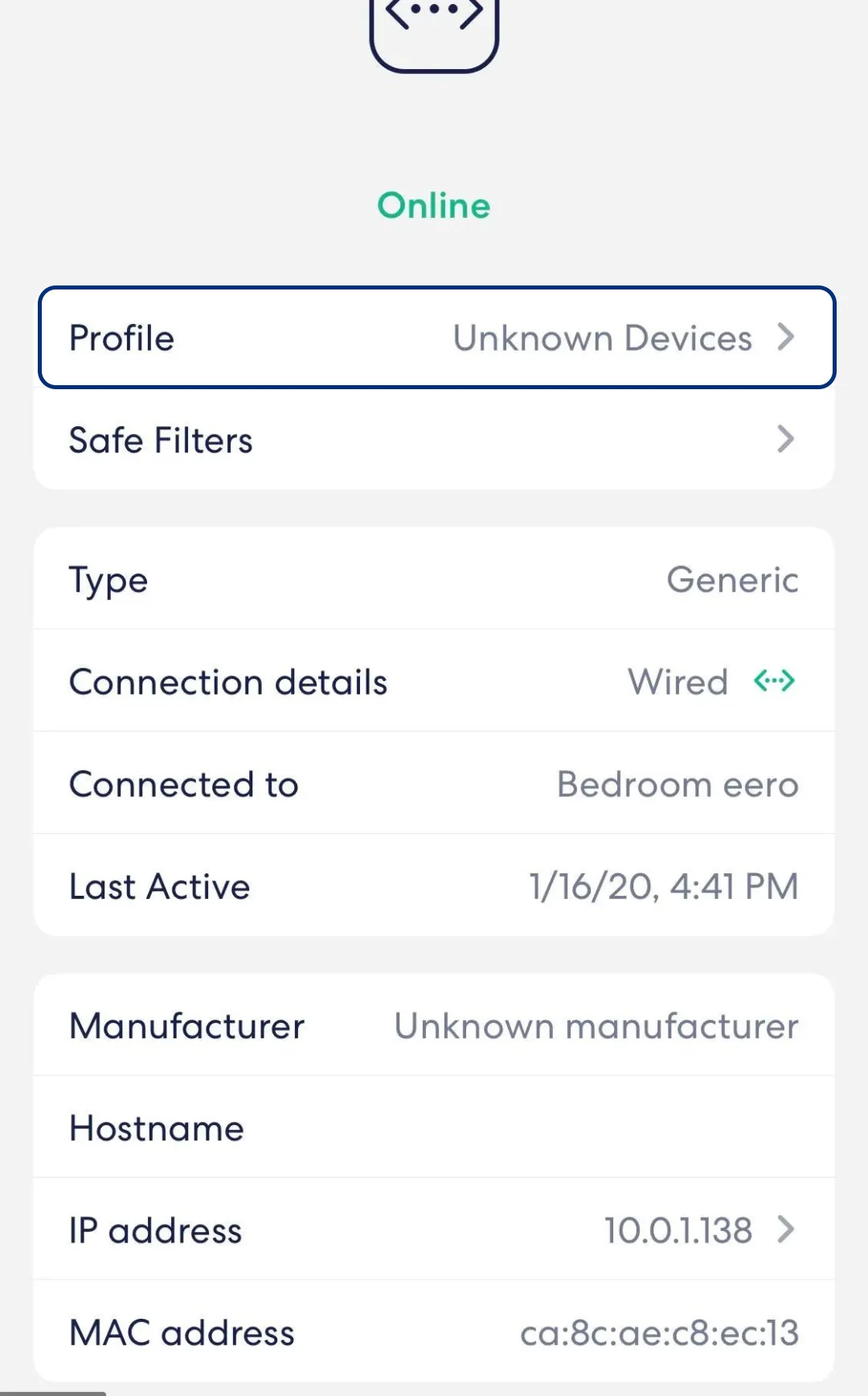
To fix it, update the gateway's device type in the Eero app:
-
Make sure the gateway is plugged into power and connected to the Eero base unit with an ethernet cable, and give it time to boot up (see Step 3 above).
-
Open the Eero app and go to the client list.
-
Find the device named Autopilot. In some cases it shows its maker's name, Aeotec, instead.
-
Tap the device to open its profile. It can help to rename it to Shipshape Hub so it's easy to find later.
-
Tap Type and change it to Hub.
-
Wait about 1 minute. The gateway should now be recognized as a hub and get full access.
If the gateway still doesn't connect, check that the ethernet cable is firmly seated at both ends and restart the gateway once (see Troubleshooting below). If it's still offline, see Gateway Won't Come Online During Installation, then contact Shipshape support.
Troubleshooting
Gateway is not showing as connected in the app
- Confirm the ethernet cable is plugged into the Eero base unit, not a satellite
- Check that the cable is firmly seated on both ends (you should feel a click)
- Verify your internet is working by testing WiFi on your phone
- Power cycle the gateway: unplug power, wait 10 seconds, plug back in
- Check whether Eero is holding it back (see If Eero Holds the Gateway Back)
Gateway was working but went offline
- Check that the Eero base unit is still powered on and online
- Verify the ethernet cable has not come loose (pets and cleaning can dislodge cables)
- Restart the gateway by unplugging and reconnecting power
- If the issue persists, restart the Eero base unit as well
Both Eero ports are full and you do not want a switch
- Some newer Eero models have only one ethernet port (used for the modem connection). In this case, a network switch is required. There is no way around it, but the good news is that switches are inexpensive and require zero setup.
Need Help?
If you are having any trouble connecting your Shipshape Gateway to your Eero system, contact our support team. You can also chat with SAM in the Shipshape app for quick troubleshooting help.