Invite a Family Member to Your Home

Your home is everyone's home. Add the people who live in it, or help look after it, so they can see the home in the Shipshape app too. It takes about a minute.
Only Owners can invite. If Add Member is greyed out, you're a Family member or Guest on this home, or the home already has 10 people on it.
Step 1 — Open your home
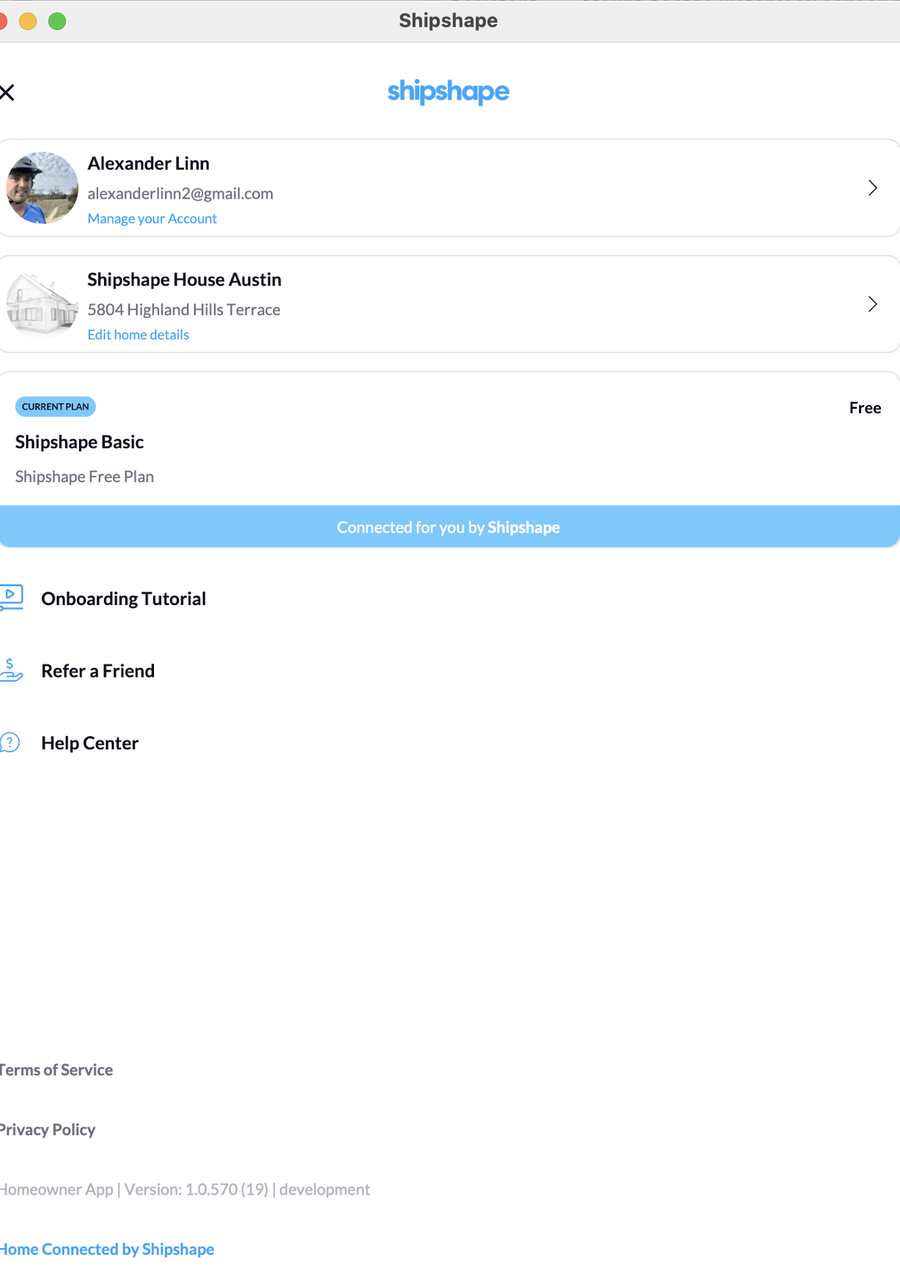
Open the Shipshape app, open the Menu, and tap your home (Edit home details).
Step 2 — Tap "Manage Home Members"
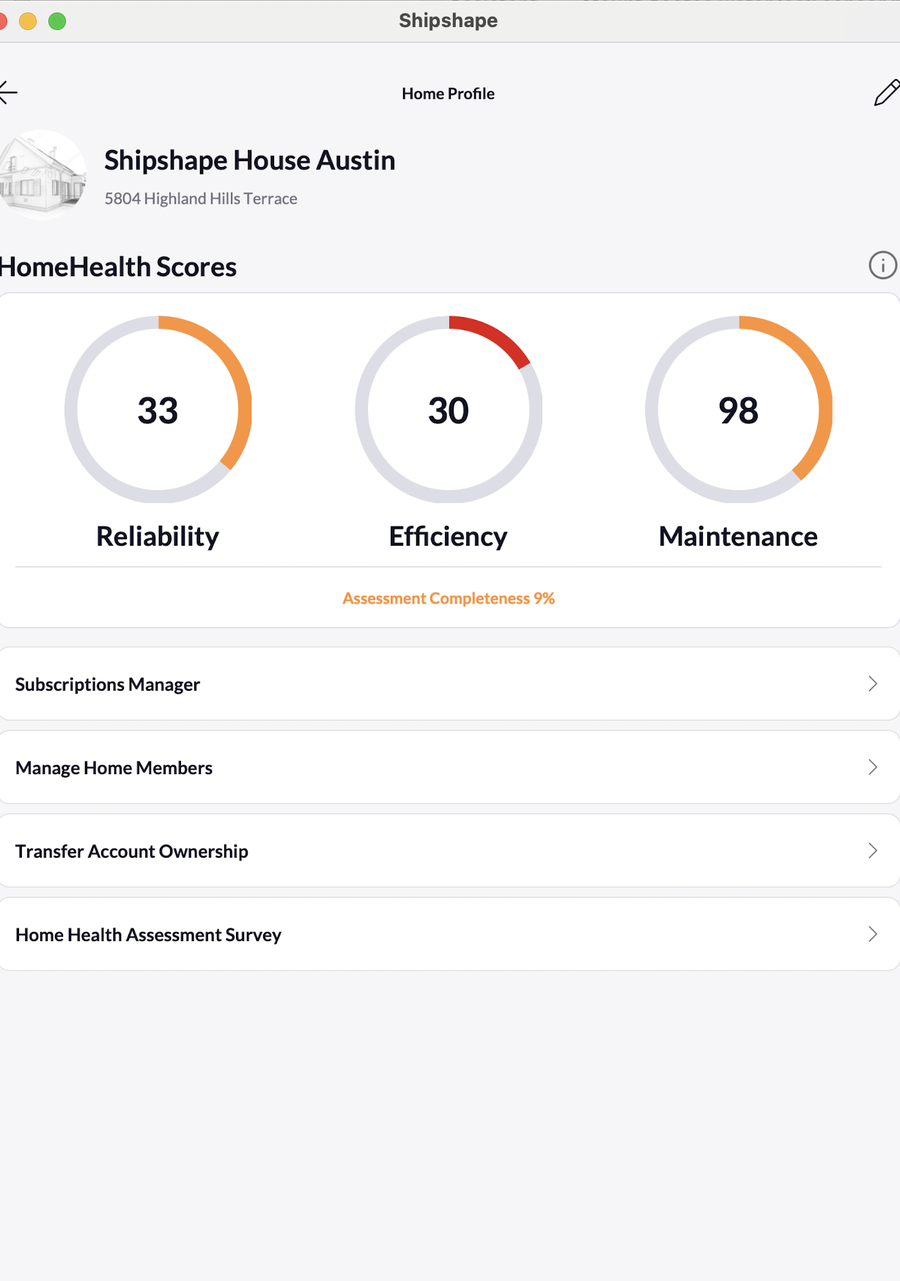
On the Home Profile screen, scroll past your HomeHealth Scores and tap Manage Home Members.
Step 3 — Tap "Add Member"
The Members screen lists everyone on the home, grouped by role. Anyone you've invited who hasn't joined yet shows Invite sent. Tap the blue Add Member button.
Step 4 — Pick their role
Tap Role, choose one, then tap Done. It starts on Owner, so change it to Family member for most people. Not sure? See which role to pick.
Step 5 — Send the invite
Under Invite method, pick one of the three tabs:
- Email. Type their email in lowercase. You can add more than one. Tap Send Invite, check the list, then tap Confirm & send invites. They get an email with an Accept Invite button. It only works for that exact email, so use the one they sign in to Shipshape with.
- Link. Tap Share Link to send it by text or a chat app, or tap Copy to Clipboard.
- QR Code. Hold up your phone and let them scan the code with theirs.
They need the Shipshape app on their phone before they open your invite. Then:
- Email invite. They open the email on their phone, tap Accept Invite, then sign in or sign up with that same email. The app asks them to sign in even if they already are.
- Link or QR code. They open the link or scan the code, then sign in or sign up. If they're already signed in, have them log out first: Menu, tap their name (Manage your Account), then Log Out. If they're on the Create Home screen, there's no Menu, so they tap the back arrow at the top left instead. If opening the link or scanning the code puts them back on Create Home, they tap the back arrow again, then sign in.
- Installed the app after tapping? The invite doesn't carry over, so have them open or scan it again. If they already signed in, a link or QR code needs them to log out first, as above.
Once they accept, they show up in your Members list with their role.
Treat the link and QR code like a key. Each one works for 24 hours, and anyone who has it can use it to join your home with the role you picked. Set the role before you share it, and only share it with people you mean to invite. Inviting one person? Email is the safer choice.
Which role should I pick?
| Role | Give it to | What they get |
|---|---|---|
| Owner | Your spouse or co-owner | Full access to the home. Can invite new members and remove anyone else. |
| Family member | Adult kids, parents, others who live there | Full access to the home, but can't invite or remove other members. Right pick for most people. |
| Guest | House sitter, a friend checking on the place | View only. They can look around the home but can't control anything. |
Change someone's role
You can't change a role in the app. Remove the person, then invite them again with the new role.
Remove someone or cancel an invite
On the Members screen, tap the person.
- To remove a member, tap Remove Member, then Yes, remove. They lose access right away. You can always invite them again later.
- To cancel an invite that hasn't been accepted yet, tap Cancel invitation, then Yes, cancel.
Only Owners can remove other people. Only the person who sent an invite can cancel it. If that person can't, or you can't tell who sent it, contact support. Family members and Guests can remove themselves. A home always keeps at least one Owner, so the last Owner can't be removed.
Common snags
- "The email address provided is already in use." There's already an open invite for that email on this home. Tap their entry (it shows Invite sent), tap Cancel invitation, then invite them again. If you didn't send it, you'll see "Not acceptable" when you try, so ask whoever sent it to cancel it, or contact support. The "already in use" message also shows if you typed your own email with different capital letters. If you entered several emails at once, the others may still have gone out, so check your Members list before you try again.
- "Invite cannot be sent to home owner" under the email box. That's your own email. Enter theirs instead.
- The invite never arrived. Ask them to check Spam, Gmail's Promotions tab, or Outlook's Other inbox. There's no resend button. Cancel the invite first, then send a new one or share the link. A link won't work for them while an email invite to their address is still open.
- They signed up but don't see your home. Signing up on its own doesn't add them, and an invite tapped before the app was installed gets lost. If you emailed them, have them open the email on their phone again, tap Accept Invite, then sign in with the email it went to. If you shared a link or QR code, have them log out first (Menu, tap their name, then Log Out, or the back arrow on the Create Home screen), then open or scan it again and sign back in. If opening or scanning it puts them back on Create Home instead, they tap the back arrow again, then sign in. A link or QR code only works for 24 hours, so share a new one if it's older. If they have a home of their own in the app (signing up by email makes one, named after their last name), the app may open that one first. Have them tap the home name at the top of the main screen and pick yours. If they use a different email than the one you invited, cancel the invite and send a new one, typed in lowercase, to the email they actually use.
- Add Member is greyed out. Only Owners can invite. A home also has room for 10 people, and invites that haven't been accepted yet count toward that. Cancel an old invite or remove someone to free a spot.
One last thing
Don't make everyone an Owner. Owners can remove other Owners, including you. Keep Owner for true co-owners. Family member is the right choice in almost every case.