Aeotec Home Energy Meter 8
Homeowner Summary
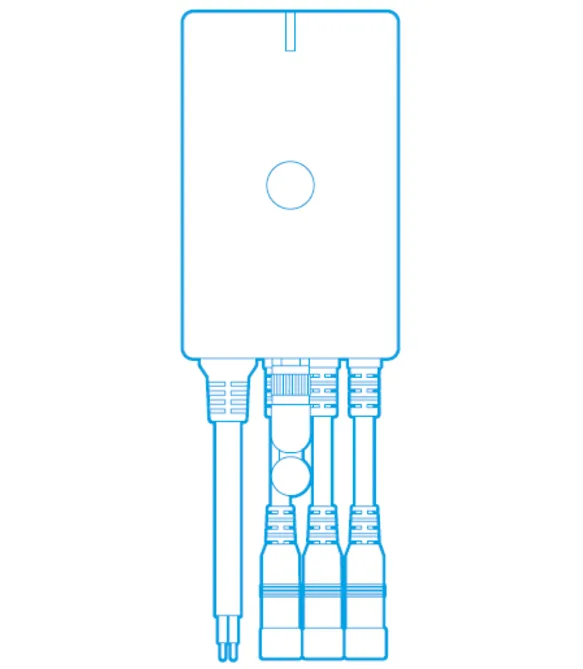
The Aeotec Home Energy Meter 8 gives SAM visibility into your home's total electricity consumption. Clamps around the main power lines in your electrical panel measure how much power your home is using. This is whole-home energy monitoring: every light, appliance, HVAC system, and device plugged in anywhere in your home is captured in the total.
Why does this matter? Most homeowners have no idea how much electricity they are using in real time or how their usage breaks down throughout the day. The Energy Meter feeds this data to SAM, which learns your home's normal electrical profile and can detect anomalies: a sudden spike might indicate an appliance malfunction, a gradual upward trend could reveal an aging HVAC system working harder than it should, and seasonal comparisons help identify insulation degradation or inefficient heating and cooling patterns.
The meter is compact, mounts on the wall next to your electrical panel, and communicates wirelessly with your Shipshape gateway using Z-Wave 800 series technology. It reports power (watts), voltage, current (amps), and cumulative energy consumption (kilowatt-hours). Because the clamps go inside the panel, the electrical installation must be done by a licensed electrician with the main breaker off; pairing it with the gateway is something your installer, or you, can do.
How It Works
The Energy Meter uses current transformer (CT) clamps that clip around the main electrical cables inside your breaker panel. The clamps detect the magnetic field generated by electrical current flowing through the cable and convert it into a proportional low-voltage signal that the meter reads. They surround the insulated cable and do not touch bare conductors, but fitting them means working next to live parts, so Aeotec requires the main breaker to be off.
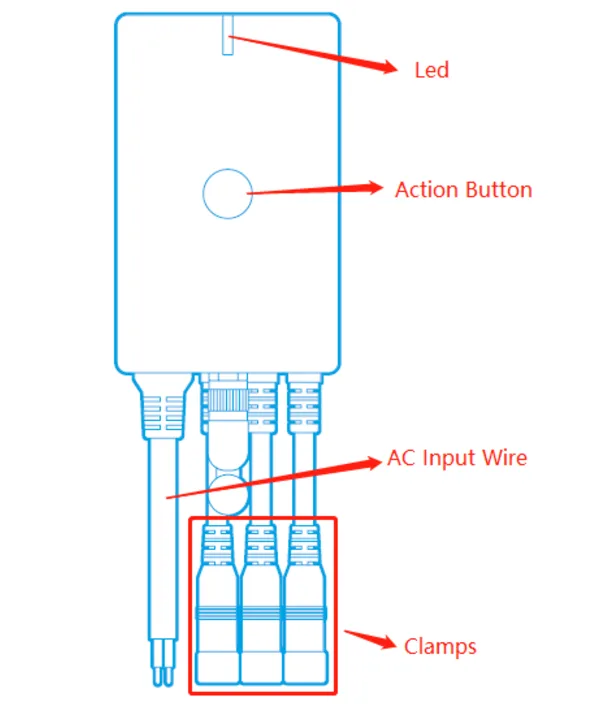
The meter contains a Z-Wave 800 series radio that transmits the measured data to your Shipshape gateway. Thick concrete walls, metal, and motors weaken that radio signal, which is why the meter body belongs outside a metal panel.
The meter measures these electrical parameters:
- Power (watts) — Real-time power draw. SAM uses this to detect spikes, unusual loads, and consumption patterns.
- Voltage (volts) — Monitors the voltage supplied by your utility. Voltage sags or surges can damage electronics and appliances. SAM alerts on sustained voltage outside the normal 114-126V range.
- Current (amps) — Measures the actual current flowing through each monitored line. SAM uses this to detect circuit overloads and calculate power factor.
- Energy (kWh) — Cumulative energy consumption tracked over time. SAM uses this for daily, weekly, and monthly usage reports and trend analysis.
The US version monitors two lines (the two legs of a 240V split-phase residential service), providing whole-home coverage with a single device. It can also report power your home produces, for example from solar panels.
Status LED and Action button
The meter has a single LED:
- Slowly fading or blinking — ready to be paired.
- Solid — paired with a network.
| Action button | LED | What it does |
|---|---|---|
| Power up, not paired | Blinks slowly | Ready to be paired |
| Power up, paired | Solid | Already paired |
| 1 tap, not paired | Blinks quickly | Enters pairing mode; tap again to leave it |
| 1 tap, paired | Blinks quickly | Enters exclusion (unpairing) mode |
| 2 taps, paired | — | Sends a meter report right away |
| Hold 1–2 seconds | Off | Nothing |
| Hold 3–9 seconds | Blinks slowly, then quickly | Factory reset is starting; release to cancel |
| Hold 10+ seconds | Solid for 2 seconds, then blinks slowly | Factory reset. The meter tells the gateway it was reset, which usually removes it from the gateway |
Unpairing (exclusion) from the gateway also factory-resets the meter, and is a good way to check that the gateway and the meter can talk to each other.
Setup Guide
What's in the box
The meter, a back mount, screws, detachable clamps, a warranty card, and a quick start guide. The US version (2 clamps, 200 A) has a 120 V plug; other versions come with wire-in cables. If a unit has no plug and you need one, Aeotec suggests a wireable third-party plug.
Installation
Only a licensed electrician should install the meter in the panel, with the main breaker turned off. Pairing it with the gateway afterwards can be done by your installer or by you.
- Turn off the main breaker and open the electrical panel.
- Connect each clamp to the meter with its clamp connector and screw it tight.
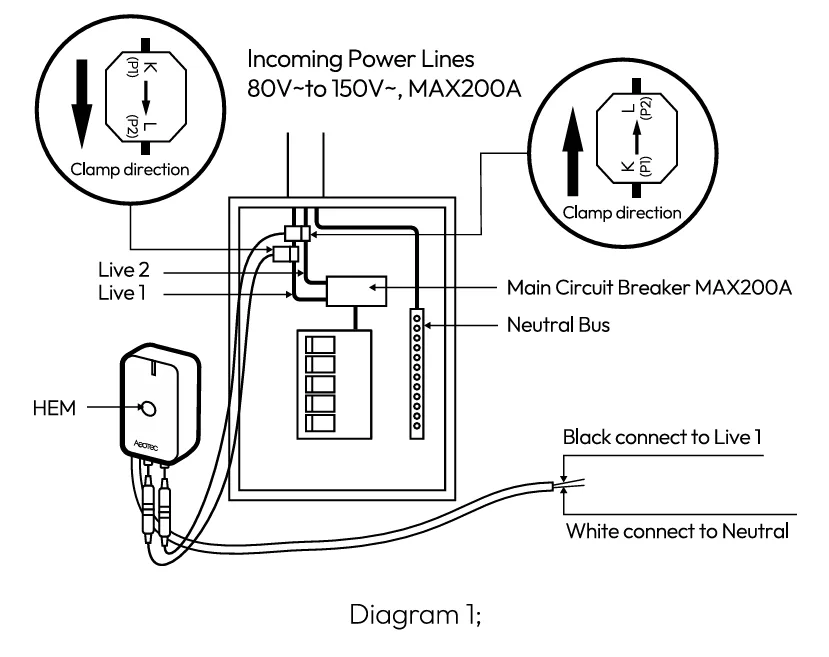
- Clip the clamps around the two incoming lines above the main breaker: Clamp 1 on Live 1, Clamp 2 on Live 2. Each clamp has a K→L arrow. As the diagram shows, the arrow on the Live 1 clamp points toward the main breaker, and the arrow on the Live 2 clamp points away from it.
- Power the meter. Plug the US version into an outlet on the Live 1 circuit. A wire-in unit connects its black wire to Live 1 and its white wire to the panel's neutral bus.
- Close the panel and turn the main breaker back on.
- Mount the meter outside the panel if the panel is metal: take off the back plate, screw it to the wall vertically with the meter's wires at the bottom, and attach the meter. The meter is IP44 rated (rain and snow resistant when mounted vertically), but indoors or a sheltered spot is best.
- Pair it with your Shipshape gateway. Put the gateway into pairing mode, then tap the meter's Action button once. If asked, scan the QR code on the meter or enter the 5-digit DSK code printed under it. A solid LED means it's paired.
- Verify readings — Compare the meter's power reading to your utility meter (if you have a smart meter with real-time display) to confirm accuracy.
If a reading looks wrong
If a line reads far too low or shows up as power production when nothing in the home produces power, the clamp on that line may face the wrong way. Turn it around to match the diagram.
Maintenance Guide
DIY (Homeowner)
- No regular maintenance required — The meter is powered continuously and has no batteries to replace. CT clamps have no moving parts and no wear components.
- Check the plug — If the meter goes offline, check that its plug is still in the outlet and that the outlet has power. A tripped outlet (GFCI or breaker) takes the meter offline.
- Do not open the electrical panel yourself — If you suspect a CT clamp has shifted, contact your service professional.
- Keep it dry and away from heat. Don't install it in a bathroom or other humid room, or where it can get wet. Keep it away from open flames, direct heat, direct sunlight, children, and pets.
Professional
- Verify CT clamp position — During service visits, confirm the CT clamps are still securely around the main conductors and have not shifted.
- Compare readings to utility bill — Monthly kWh from the meter should approximate the utility bill. A significant discrepancy (more than 5%) indicates a CT clamp issue, calibration problem, or a circuit not being monitored.
- Check for firmware updates — The Z-Wave 800 chip supports over-the-air updates through the gateway.
- Inspect cable routing — Ensure the CT clamp signal cables are not pinched by the panel cover or routed near high-voltage connections.
Warning Signs
- Meter reports zero watts when the home is clearly consuming power (CT clamp disconnected or shifted)
- One line reads far too low, or shows production with nothing producing power (that line's clamp faces the wrong way)
- Power readings that do not correlate with actual usage (CT clamp on wrong cable or only monitoring one leg)
- Meter offline in Shipshape (plug pulled out, or the outlet tripped)
- Voltage readings consistently below 114V or above 126V (utility supply issue — contact your electric company)
Pro Detail
Specifications (US version, ZWA046-A, 2 clamps, 200 A)
From Aeotec's technical specifications, its US engineering specification, and its store page:
| Spec | Value |
|---|---|
| Z-Wave | 800 series, Long Range (US) |
| Security | S0, S2 Unauthenticated and Authenticated, SmartStart |
| Frequency | 908.4 MHz (US) |
| Monitored lines | 2 (split phase), up to 200 A |
| Clamp | 200 A, 66 × 54 × 31 mm, cable about 2 m |
| Voltage measurement | 80–150 V AC |
| Current measurement | 0–200 A |
| Accuracy | Over 99% when the current is above 0.05 A |
| Power input | 120 V AC, 60 Hz, 20 mA, by plug |
| Dimensions (meter) | 85.5 × 54.3 × 38 mm |
| Operating temperature | −15 to 40 °C (store page; the engineering specification says 0 to 40 °C) |
| Operating humidity | 8–95% |
| Rating | IP44 |
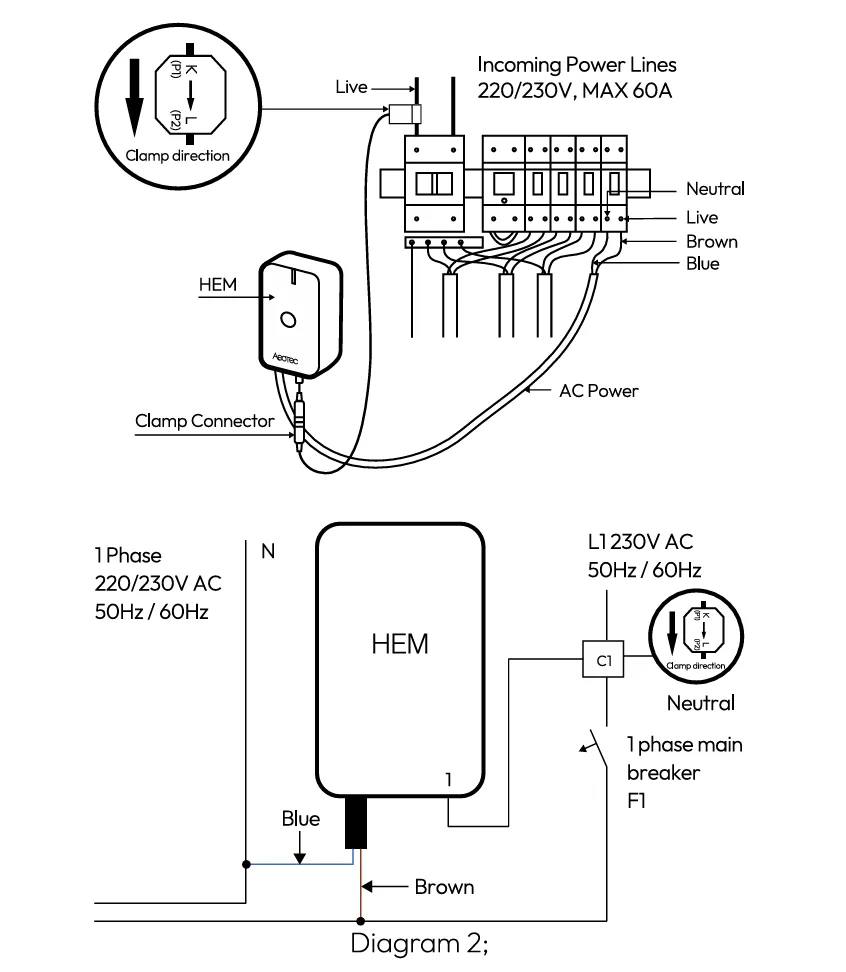
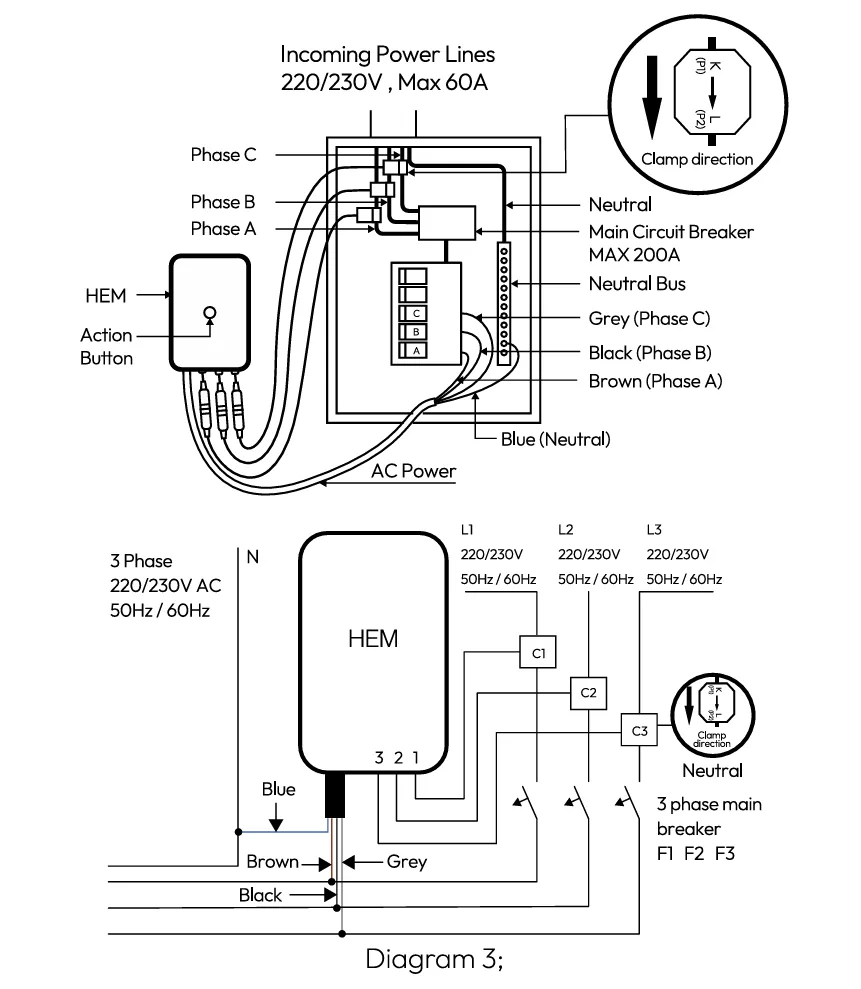
Other versions: EU 1-phase and 3-phase/4-wire (230 V, 180–260 V measured, wire-in) and EU 3-phase/3-wire (380 V, 220–400 V measured).
Z-Wave configuration parameters
From Aeotec's engineering specification. "Import" is power the home uses; "export" is power it sends back, for example from solar.
| Parameter | What it sets | Range | Default |
|---|---|---|---|
| 3 | Threshold reports on or off | 0–1 | 1 (on) |
| 4–7 | Import change in watts that triggers a report (total, then each line) | 5–60000 W | 50 W |
| 8–11 | Export change in watts that triggers a report | 5–60000 W | 50 W |
| 12–15 | Import change in percent that triggers a report | 1–100% | 20% |
| 16–19 | Export change in percent that triggers a report | 1–100% | 20% |
| 101–103 | What automatic report lists 1, 2 and 3 contain (import) | bitmask | list 1: kWh and W; list 2: V and A; list 3: kVarh, kVar, kVAh and power factor |
| 104–106 | The same for export | bitmask | as 101–103 |
| 111–113 | How often lists 1, 2 and 3 are sent (import) | 10 s and up | 3600 s, 7200 s, 7200 s |
| 114–116 | The same for export | 10 s and up | as 111–113 |
| 100, 110 | Reset parameters 101–106 and 111–116 to their defaults | — | — |
| 252 | Lock the configuration | 0–1 | 0 |
With the defaults, the meter sends watts and kWh every hour, volts and amps every two hours, and an extra report whenever power changes by 50 W or 20%.
Endpoints
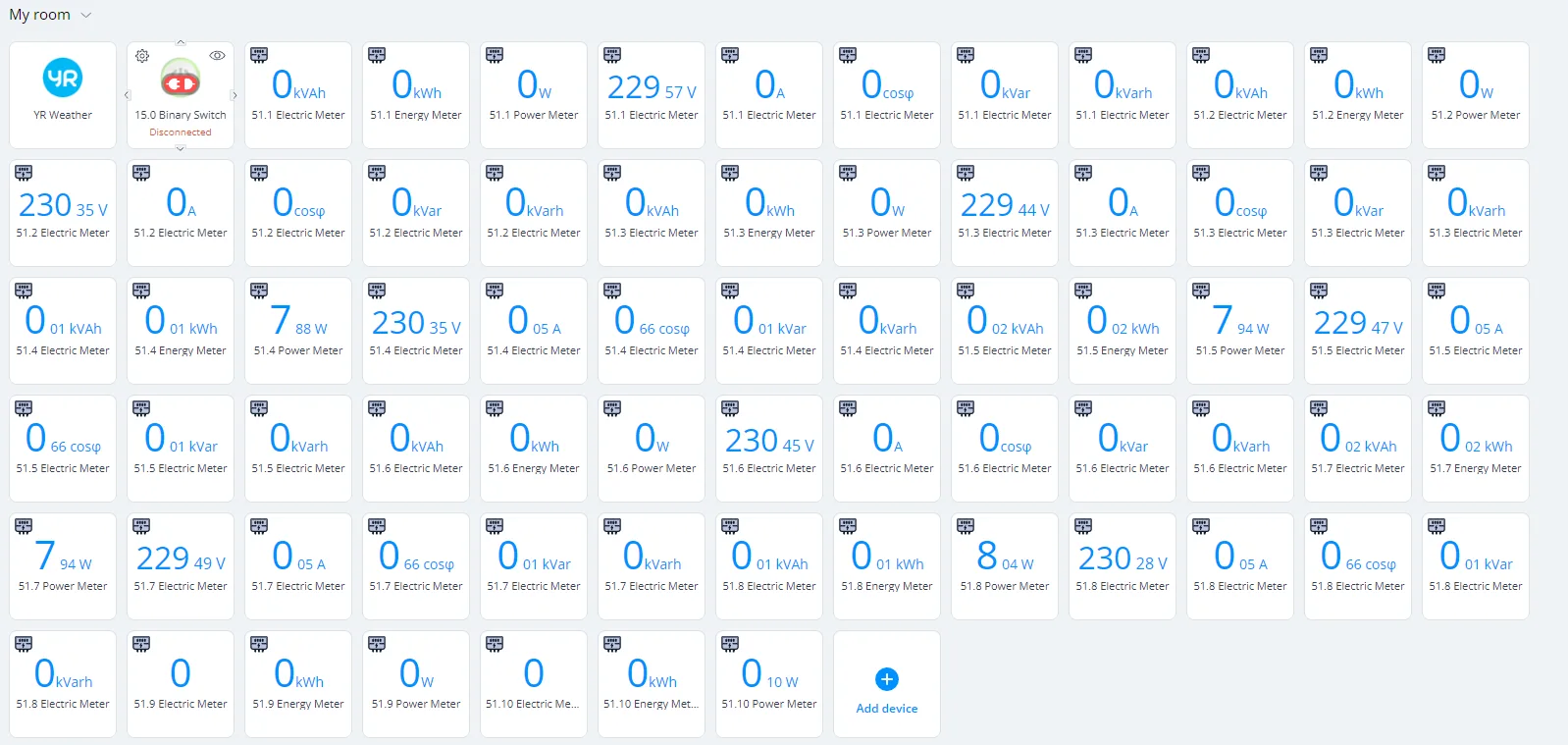
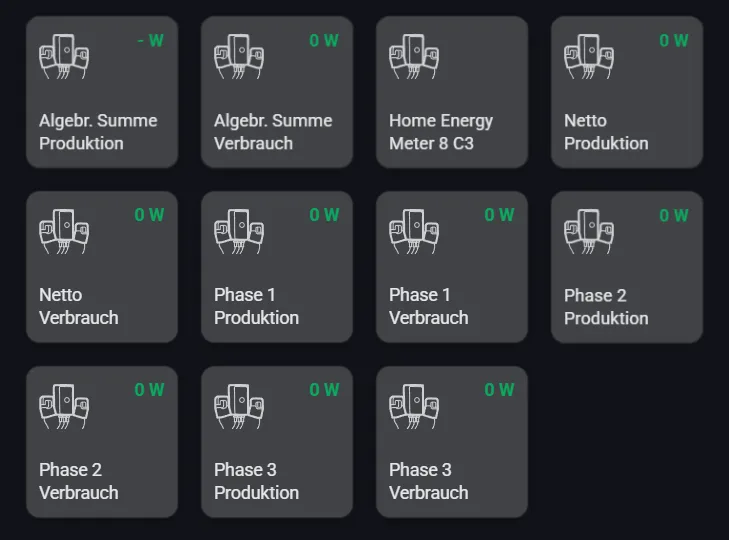
A gateway shows the meter as several child devices (endpoints). Each one can report V, A, W, kWh, power factor, kVar and kVarh.
| Version | Endpoints |
|---|---|
| 1 clamp (6 endpoints) | 1: clamp 1 consumption; 2: clamp 1 production; 3: total consumption; 4: total production; 5: net consumption; 6: net production |
| 2 clamps (8 endpoints) | 1–2: clamp 1 consumption and production; 3–4: clamp 2 consumption and production; 5: total consumption; 6: total production; 7: net consumption; 8: net production |
| 3 clamps (10 endpoints) | 1–6: clamps 1–3 consumption and production; 7: total consumption; 8: total production; 9: net consumption; 10: net production |
Net consumption is consumption minus production; net production is the reverse.
Wiring outside the US
Pairing with other Z-Wave hubs
Shipshape homes use the Shipshape gateway (Setup Guide, step 7). Aeotec documents these steps for other hubs:
- Aeotec AutoPilot: open the AutoPilot interface → DEVICES → + Add new → + → + Add, then tap the meter's Action button once.
- Aeotec Smart Home Hub / SmartThings (Aeotec's guide): in the SmartThings app tap + → Add Device → Scan Nearby, tap the Action button once, choose Secure Setup, then scan the QR code or enter the 5-digit DSK code. Aeotec says a custom Edge driver is currently required.
- Home Assistant / Z-Wave JS: Configuration → Integrations → Configure → ADD NODE → START INCLUSION, then tap the Action button once. Long Range pairing is available in Z-Wave JS UI.
- Hubitat: Devices → + Add device → Z-Wave → + Start Z-Wave Inclusion, then tap the button. Install the drivers Aeotec links for Hubitat.
- Fibaro HC3 / Yubii Home: + Add device → Z-Wave → Start (the hub's green LED blinks), tap the Action button once, then enter the 5-digit PIN.
- Homey Pro: Devices → + → New Device → the Aeotec app → Home Energy Meter 8 → Connect, tap the button once and again when asked, then enter the 5-digit DSK code from the back of the meter, under the mount.
- SmartStart: a gateway that supports SmartStart pairs the meter automatically when you scan its QR code.
- Most other hubs: start adding a Z-Wave device, tap the Action button once, and scan the QR code or enter the DSK code if asked.
Before buying a meter for your own hub, check Aeotec's compatibility list.
Common Failure Modes
- CT clamp loosening — Vibration from the panel or nearby HVAC equipment can gradually loosen the clamp. The clamp must fully surround the cable for accurate readings.
- Lost power — The most common cause of the meter going offline: its plug was pulled out, or the outlet lost power.
- Signal interference from panel — A metal panel blocks the radio. If the meter has trouble communicating with the gateway, mount it outside the panel on the adjacent wall.
- Partial monitoring — If only one CT clamp is installed (or one shifts off), the meter reports approximately half of actual consumption. Both clamps must be on their respective legs for accurate whole-home monitoring.
Diagnostic Procedures
- Meter offline — Check the plug and the outlet first. If it has power, check that the gateway can reach it (a single tap on the Action button while paired starts exclusion, so don't use that as a test). Power cycle the meter by unplugging it for one minute.
- Readings too low — Verify both CT clamps are installed and positioned correctly. Check that clamps are around the main incoming conductors, not a sub-panel feed or individual circuit.
- Readings erratic — Ensure CT clamp signal cables are not running parallel to or wrapped around power conductors, which can induce interference.
- kWh does not match utility bill — Calculate the expected monthly kWh from the average watt reading (average watts x 720 hours / 1000). If this matches the meter's kWh but not the utility bill, the utility meter may include charges from a circuit not monitored by the Aeotec meter (e.g., a separate sub-panel).
Data Interpretation
Understanding the meter's output helps homeowners and technicians identify issues:
| Power Level | Typical Meaning |
|---|---|
| 200 - 500W | Base load (refrigerator, always-on electronics, standby power) |
| 500 - 1,500W | Active use (lighting, cooking, laundry without heat) |
| 1,500 - 5,000W | Heavy appliance (oven, dryer, HVAC compressor running) |
| 5,000 - 10,000W | Multiple heavy loads (HVAC + dryer + oven simultaneously) |
| 10,000W+ | Peak demand — check for unusual loads |
| Sustained spike | Appliance malfunction, stuck relay, or HVAC running continuously |
| Gradual upward trend | Aging equipment, dirty filters, insulation degradation |
Cost Guide
| Item | Price Range | Notes |
|---|---|---|
| Aeotec Home Energy Meter 8 | $60 - $100 | US version includes 2 clamps and a plug; Aeotec's store lists it at $95.99 |
| Replacement CT clamps (200A) | $15 - $25 | Per clamp |
| Professional installation | $50 - $100 | If not included in Shipshape setup |
Energy Impact
This is the one sensor that directly measures energy impact. The meter provides the raw data for every energy-related insight SAM delivers:
- Baseline establishment — Within 2 weeks of installation, SAM establishes your home's normal energy consumption profile by hour of day, day of week, and season.
- Anomaly detection — Deviations from baseline trigger investigation. A 30% increase in overnight base load might indicate a failing refrigerator compressor or a pool pump stuck on.
- HVAC efficiency tracking — By correlating energy consumption with temperature data from MultiSensors and TriSensors, SAM calculates how many watts per degree your HVAC system uses. Increasing watts-per-degree over time indicates declining efficiency.
- Cost estimation — SAM converts kWh data to estimated dollar costs using your local utility rate, making energy waste tangible.
Shipshape Integration
The Energy Meter is SAM's primary data source for electrical system intelligence and serves as the foundation for energy-related insights across the entire platform.
SAM Monitoring:
- With Aeotec's defaults, the meter reports every hour and whenever power changes by 50 W or 20% (see the settings above). SAM processes this into rolling averages, peak detection, and trend analysis.
- Voltage monitoring detects utility supply issues (brownouts, surges) that can damage appliances and HVAC equipment. SAM alerts homeowners to sustained voltage anomalies and recommends surge protection if events are frequent.
- Energy consumption is correlated with HVAC runtime, weather data, and occupancy patterns to build a comprehensive energy model for each home.
- SAM detects "energy ghosts" — unexplained base load consumption that indicates standby power waste or a malfunctioning appliance.
Home Health Score:
- Energy efficiency is a significant component of the Home Health Score. Homes with stable, predictable energy consumption score higher than homes with erratic or excessive usage.
- Declining efficiency over time (rising watts-per-degree or increasing base load) triggers a gradual score reduction, prompting proactive investigation.
- Voltage instability reduces the electrical health dimension of the score.
Alert Routing:
- Energy spike alerts (sudden increase exceeding 150% of baseline) route to the homeowner as informational and to the dealer if sustained for more than 30 minutes.
- Voltage alerts (below 110V or above 130V) are classified as warnings and route to both homeowner and dealer.
- Monthly energy reports are generated automatically and shared with the homeowner through SAM.
Dealer Dashboard:
- Dealers see energy consumption trends for all managed homes, enabling fleet-wide efficiency benchmarking.
- Homes with rising energy consumption are flagged for HVAC or electrical system review.
- Energy data is used in service proposals to quantify the cost of inaction (e.g., "Your HVAC system is using 25% more energy than last year — a tune-up now could save $300 annually").