Connecting Smart Home Devices to Shipshape
Overview
If you already have smart home devices, Shipshape can work alongside them to give you a more complete picture of your home's health. Instead of juggling multiple apps to check on different devices, Shipshape brings that information together in one place. SAM can also see the data from your connected devices when you ask it about your home.
How Integrations Work
Connecting a smart device to Shipshape is simple. You sign into your device's account within the Shipshape app, authorize the connection, and data begins flowing automatically. Shipshape does not replace your existing device or its app. It reads data from your device and incorporates it into your home's overall health picture.
For example, if you connect an Ecobee thermostat, SAM can see your HVAC runtime data alongside the Shipshape sensor readings from your air handler. This gives SAM a richer picture of how your HVAC system is performing.
Supported Integrations
Ecobee Thermostats
Ecobee smart thermostats are one of the most popular integrations with Shipshape.
What Shipshape gets from Ecobee:
- Current temperature and humidity readings
- HVAC runtime data (how long your system runs each cycle)
- Heating and cooling setpoints
- Occupancy data from Ecobee room sensors
How this helps: SAM can see your thermostat's readings and runtime next to the rest of your home's data.
Z-Wave Devices
Shipshape's gateway uses the Z-Wave protocol and pairs a set of Aeotec Z-Wave devices directly, without a separate hub:
- Water leak sensors
- Door and window sensors
- Temperature and humidity sensors
- The MultiSensor 7 (motion, temperature and more)
- Smart plugs and heavy-duty switches with energy monitoring
- Home energy meters
- Range extenders
Your service professional can help you choose devices and pair them to your gateway during installation.
Amazon Alexa
Shipshape works with Amazon Alexa, giving you voice-powered access to your home's status.
What you can do with the Shipshape Alexa skill:
- Ask how your home is doing
- Ask about your open alerts
- Ask about your devices and their readings
- Ask about this month's maintenance
Example voice commands:
- "Alexa, ask Shipshape how my home is doing"
- "Alexa, ask Shipshape about my water heater"
- "Alexa, ask Shipshape what the temperature is in the basement"
To enable the Alexa integration, open the Amazon Alexa app, search for the Shipshape skill, enable it, and link your Shipshape account.
How to Connect a Device
Connecting a new device takes just a few minutes:
- Open the Shipshape Home app
- Open the Manager tab and tap Manage Network
- Tap Add new gateway
- Choose the brand or platform you want to connect: Ecobee, Google Home & Nest, Honeywell, Hubitat, Samsung SmartThings, Tesla, Wayne, YoLink or iBasement (some are under Show more)
- Sign in with your device account credentials
- Authorize Shipshape to access your device data
- If you are asked, choose which devices to include
Once connected, data flows automatically. You do not need to manually sync or refresh.
Connecting a Smart Thermostat
Shipshape works with Wi-Fi smart thermostats from three makers: Google Nest, Ecobee, and Honeywell. You connect one by adding it as an appliance:
-
On the Appliances tab, tap +.
-
Choose Smart Thermostat (under HVAC).
-
Fill in the appliance details, such as its name and location, and finish adding it.
-
On the last step, tap Connect Thermostat.
-
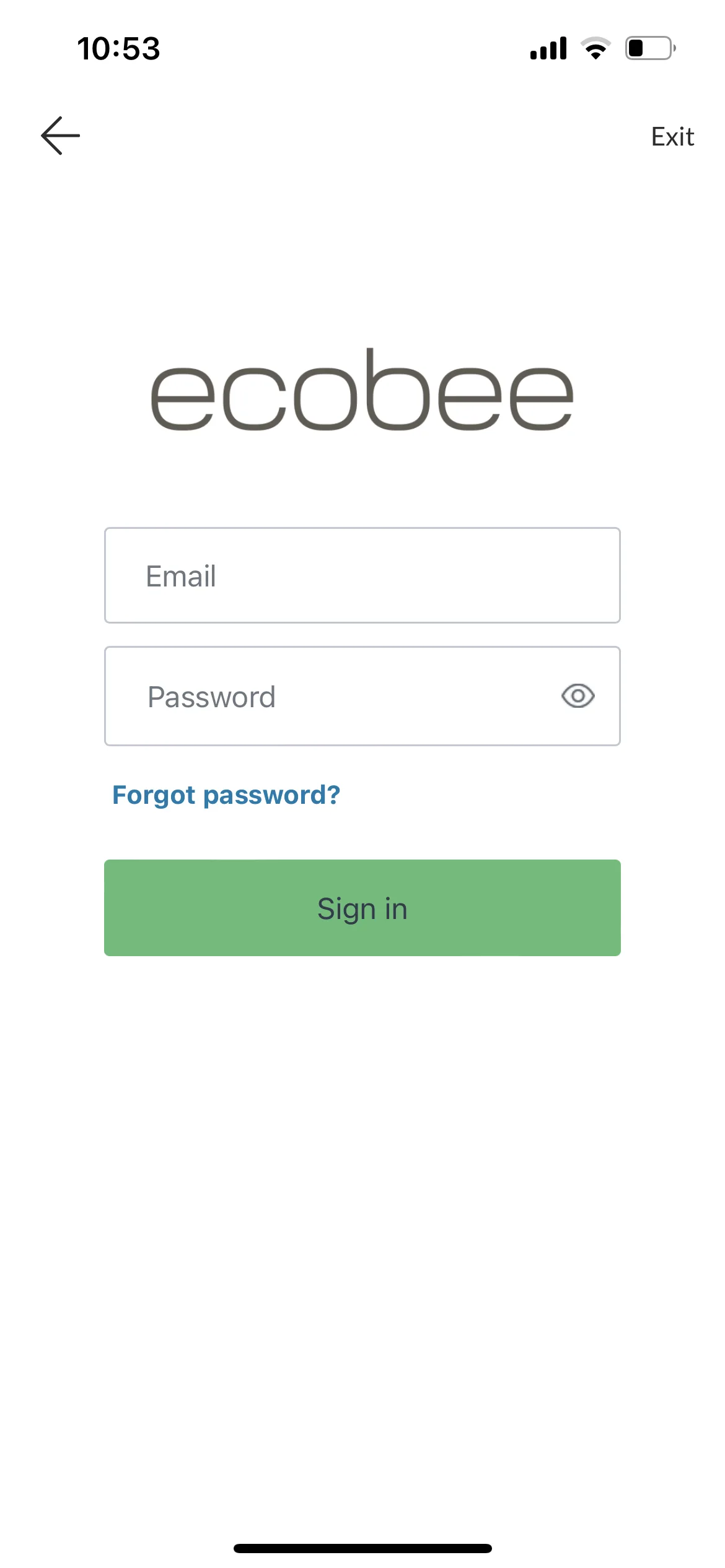
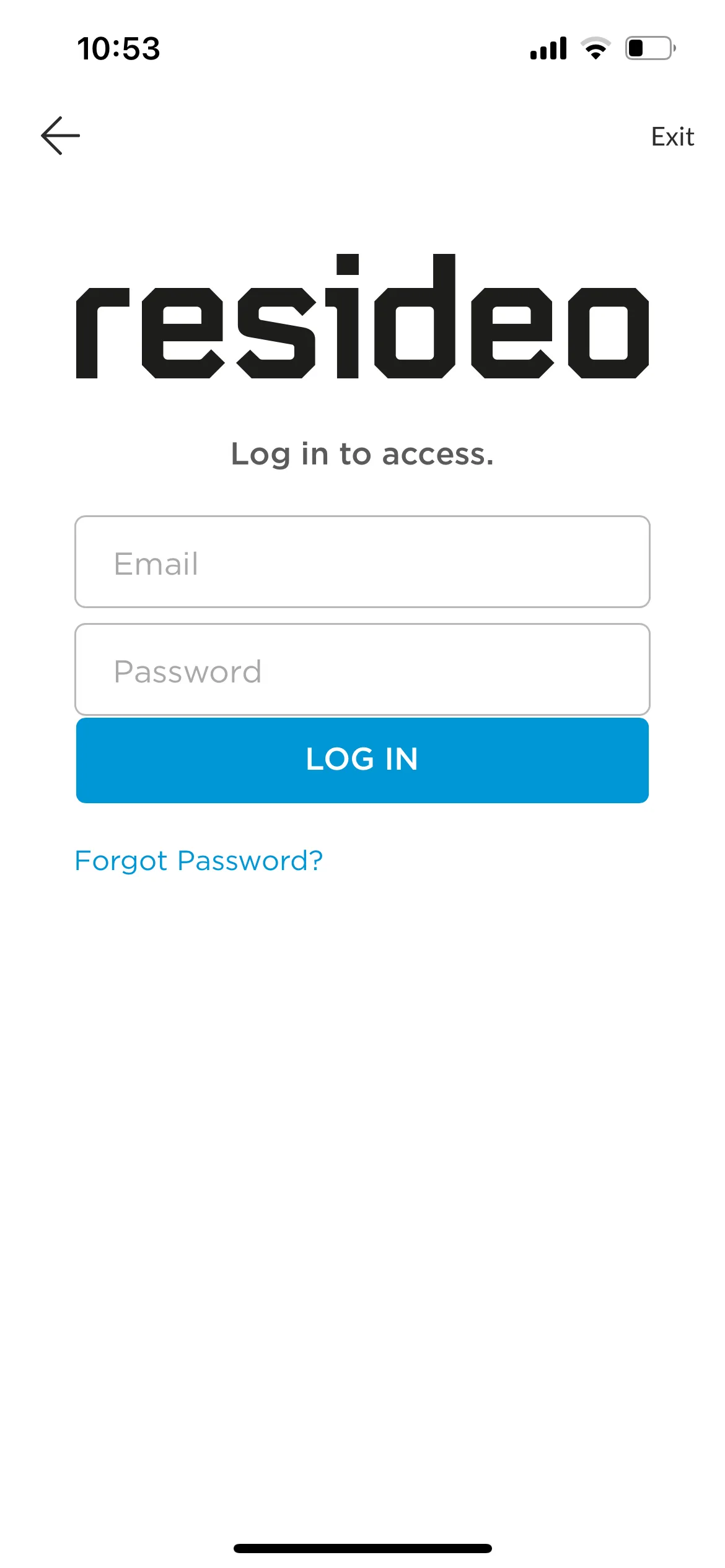
Tap Add New Gateway and choose your thermostat's maker: Ecobee, Honeywell, or Google Home & Nest.
-
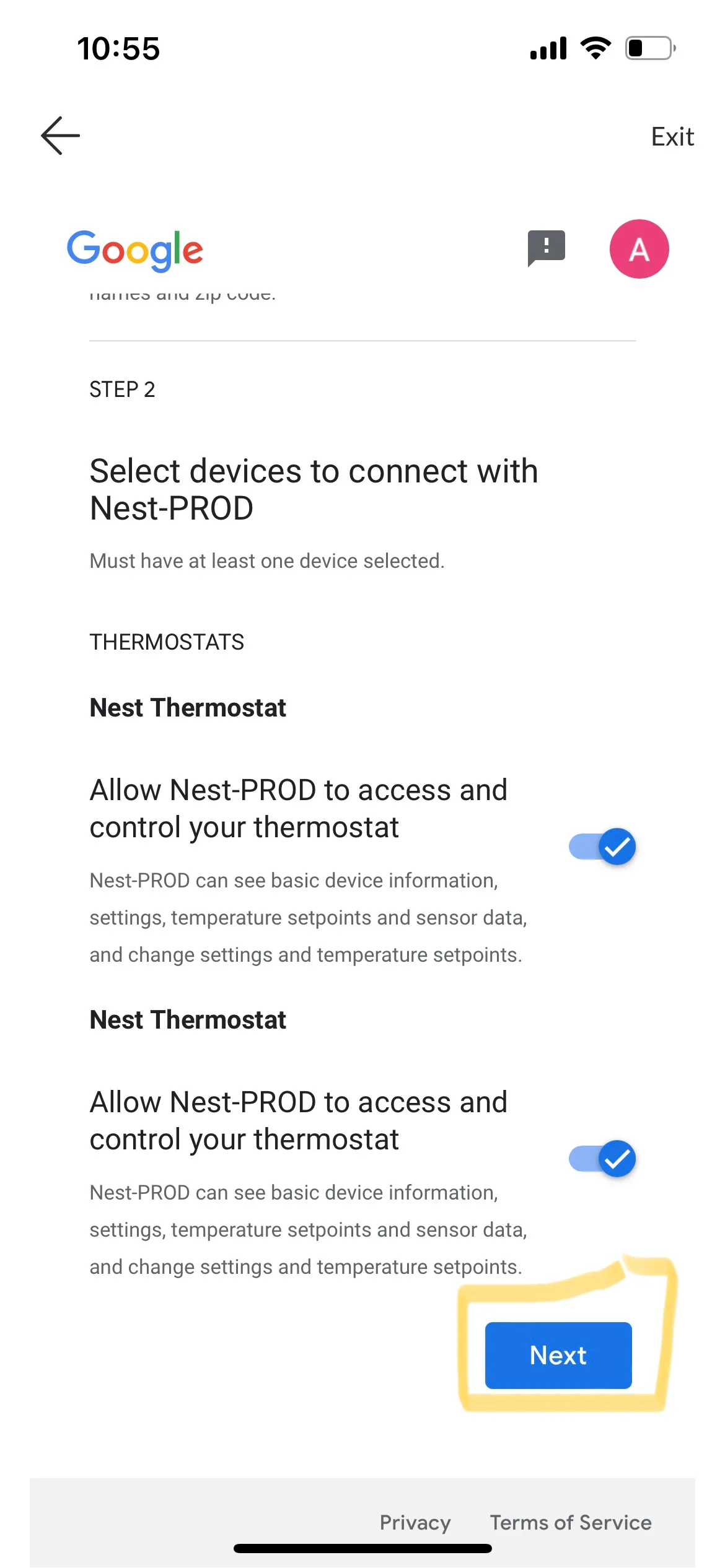
Sign in with the email and password you use in your thermostat's own app. Each maker shows its own sign-in screen, and Honeywell's shows the name Resideo. For Google Nest, you then choose which thermostats to connect and tap Next.
-
Follow the remaining steps in the app to link the thermostat.
Once setup is complete, you can change your thermostat's temperature from the Shipshape app and receive alerts about your HVAC system.
Make sure to add your HVAC service provider to the app as well. If you would like help finding an HVAC service provider, contact us.
Benefits of Connecting Your Devices
One App for Everything
Instead of checking the Ecobee app for your thermostat, another app for your sensors, and the Shipshape app for your home health, you can see it all in one place. Your Shipshape dashboard becomes the central hub for understanding your home.
Smarter Alerts from SAM
The more data SAM has, the more it can tell you. When you ask SAM about an alert, it answers with your home's appliances and their recent readings in mind.
Better Service Visits
When your service professional sees integrated device data alongside Shipshape's own monitoring, they get a more complete picture of your home.
What If My Device Is Not Listed?
If your device or platform is not currently supported, contact support to ask about a specific brand or device.
Privacy and Data Security
When you connect a third-party device to Shipshape, only the data relevant to home health monitoring is accessed. Shipshape does not access personal information beyond what is needed for monitoring. For a smart thermostat, it also lets you change the temperature and modes from the Shipshape app.
You can disconnect any integration at any time:
- Open the Manager tab and tap Manage Network.
- Tap the connected account or device.
- Tap the gear icon, then Remove Gateway, then Remove.
The integration is removed immediately, and Shipshape stops receiving data from that device.
Frequently Asked Questions
Can I change my thermostat settings from Shipshape? Yes. Once your smart thermostat is connected, you can change its temperature, HVAC mode, and fan mode from the Shipshape app.
Do I still need Shipshape's own sensors if I have other smart sensors? Shipshape's own sensors are set up for home health monitoring, such as the power draw of a dehumidifier or sump pump on a smart plug, and Shipshape's alerts are built around them. Other smart sensors can add to that picture.
Can I connect devices from multiple brands at the same time? Yes. You can have an Ecobee thermostat, Z-Wave devices, and Alexa all connected simultaneously. They all feed into SAM's analysis together.
What happens if I change my Wi-Fi network? Most integrations connect through the cloud, so changing your Wi-Fi does not affect them. Z-Wave devices connected directly to the gateway may need to be re-paired if the gateway is reset. Your service professional can help with this.