Aeotec aërQ Temperature & Humidity Sensor
Homeowner Summary
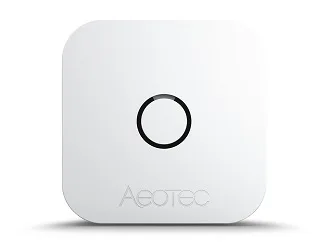
The Aeotec aërQ is a compact Z-Wave sensor that measures temperature, humidity, and dew point to warn you of conditions that are ideal for mold growth. It's about 35 mm square, mounts to almost any flat surface with the included adhesive tape, and runs on a single CR2477 battery for up to about two years.
Shipshape uses aërQ readings to watch the rooms most prone to moisture problems — bathrooms, basements, crawl spaces, and laundry areas. When humidity climbs into the range where mold thrives, SAM flags it so you can act before there's visible mold or damage. The sensor reports automatically every 15 minutes, and you can force an immediate reading with a single press.
How It Works
The aërQ is built on Aeotec's Z-Wave Gen7 platform and reports two measured values — air temperature and relative humidity — plus a calculated dew point. It uses those values to judge whether the local environment is "good" or "ideal for mould growth," and it can send a binary alert when humidity crosses a high threshold (above ~70%). Aeotec's aërQ user guide has the full technical specifications.
Reported values:
- Humidity: ±3% relative humidity. Checked every 15 minutes; reported when it moves more than ~5% RH from the last reading, or at least once every 12 hours.
- Temperature: 0–65 °C, ±1 K. Checked every 15 minutes; reported when it moves more than ~2 °C from the last reading, or at least once every 12 hours.
- Dew point: 0–65 °C, ±1 K, calculated whenever a new temperature or humidity value is reported.
Button Functions
| Press | Function | What it does |
|---|---|---|
| Long press (10s) | Reset | Starts a local factory reset. Green LED flashes once per second for 5 seconds. Green LED at the end = success; red = failure. |
| Short press | Measure + wake | Forces an immediate environment measurement and updates the mold-risk indication. Also sends a Wakeup Report so the hub can deliver any queued commands. |
| 3× short press | Pair / unpair | Puts the sensor into pairing (or unpairing) mode with your Z-Wave gateway. |
Setup Guide
What's in the box
- 1× aërQ Temperature and Humidity Sensor
- 1× CR2477H 3V battery
- 1× paper guide
- 1× double-sided mounting tape
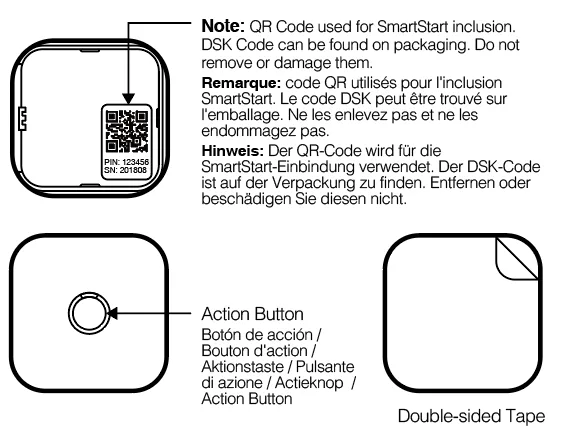
Don't remove or damage the QR code on the back. SmartStart pairing needs it.
Open the sensor
There are two small indented arrows on the side of the aërQ that show where to push to open it.
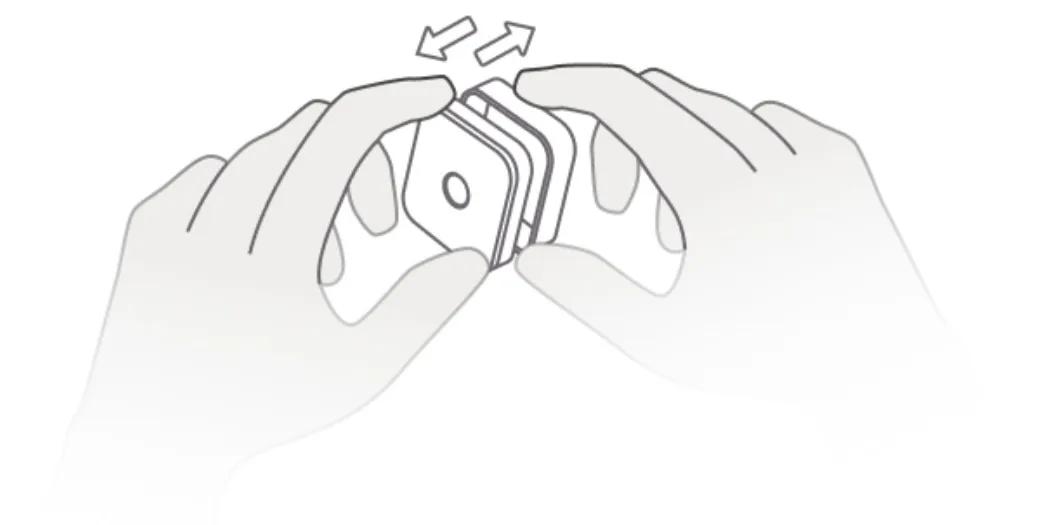
- Find the two indented arrows on the side of the sensor.
- Place your thumb and index finger on the arrows and push in. If it's mounted on a wall, pull the sensor away from its base; if it isn't mounted yet, grip the bottom half with your other hand and pull the two halves apart.
Remove the battery tab
The aërQ ships with a pull tab that keeps it from draining the battery before first use. Remove it before installing.
- Open the sensor to expose the battery.
- Remove the battery and the battery-block tab.
- Recycle or discard the tab.
- Reinsert the battery with the + side facing outward.
Mount the sensor
- Apply the double-sided tape to the bottom of the aërQ.
- Press it firmly onto a clean, flat surface in the area you want to monitor.
- Remove the sensor from its base to prepare it for pairing.
Pair with your gateway
If your gateway supports SmartStart (recommended):
- Open your Z-Wave gateway and select SmartStart inclusion.
- Scan the QR code on the aërQ.
- Within 10 minutes of powering the sensor, it joins your network automatically.
If SmartStart isn't supported:
-
Put your gateway into Z-Wave pair / inclusion mode.
-
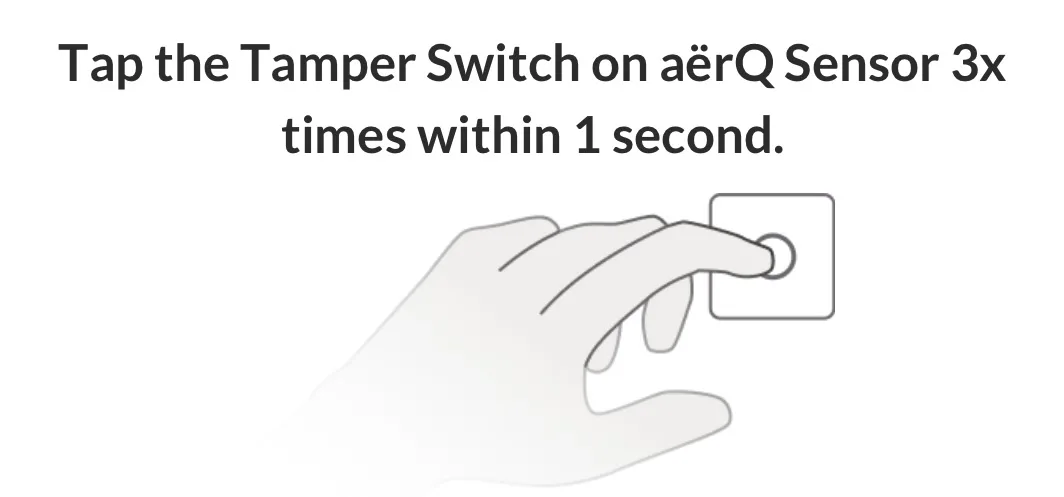
Tap the tamper switch on the aërQ three times within one second.
-
Your gateway confirms when the aërQ has joined.
-
Place the aërQ back onto its mounting base.
In most homes, your installer pairs and places the aërQ for you, so these steps are mainly a reference.
LED Indicators
When unpaired
- Red and green LED blink every second — pairing in progress (you may not see this if pairing is quick).
- Solid green for 1.5 seconds — pairing succeeded.
- Solid red for 1.5 seconds — pairing failed (timed out).
When paired
- Green LED — environment is good.
- Red LED — environment is ideal for mold growth.
- Red blinks three times, green blinks once — low battery.
Replacing the Battery
The aërQ runs on one CR2477 3 V coin-cell battery. When it runs low, the LED blinks red three times and then green once, and Shipshape sends you a low-battery alert.
- Open the sensor (see Open the sensor above).
- Take out the old CR2477 battery and recycle it.
- Insert a new CR2477 battery with the + side facing outward.
- Snap the two halves back together until they fit tightly.
- Press the button once. The sensor takes a reading right away and picks up any queued commands from the gateway.
- Check the LED: green means the room is fine, red means conditions favor mold.
If you won't use the sensor for a long time, take the battery out so it can't leak. Always use the same battery type, a CR2477.
Maintenance Guide
- Placement matters. Mount the aërQ where moisture problems start — bathrooms, basements, crawl spaces, laundry rooms — and away from direct airflow from vents, which can skew readings. See Sensor Placement Guide.
- Battery: the CR2477 lasts up to about two years; Shipshape sends a low-battery alert (red ×3 / green ×1 on the device) before it dies. To replace it, see Replacing the Battery above, or Sensor Battery Life and Replacement.
- Forcing a reading: a single short press takes an immediate measurement — useful right after install to confirm the sensor is reporting.
Pro Detail
Gateway compatibility
If you're adding an aërQ to a Z-Wave gateway yourself, check with the gateway's maker that it supports the aërQ first. Most Z-Wave gateways work with sensors generically. Aeotec keeps a list of compatible gateways.
Z-Wave configuration parameters
| Parameter | Size | Default | What it sets |
|---|---|---|---|
| 1 | 1 byte | 20 | Temperature change that triggers a report (2.0 °C) |
| 2 | 1 byte | 5 | Humidity change that triggers a report (5% RH) |
| 3 | 1 byte | 15 | Minutes between measurements |
| 4 | 2 bytes | 43200 | Seconds before a report is sent regardless of change (12 hours) |
Z-Wave reports
- Binary Sensor v2: ON (0xFF) when humidity is above 70%, OFF (0x00) when it is below 70%.
- Multilevel Sensor v11: air temperature (°C, precision 1, size 2), humidity (%, precision 0, size 2), and dew point (°C, precision 1, size 2). The dew point is reported again whenever temperature or humidity reports a new value.
Shipshape Integration
Shipshape turns aërQ readings into action. Instead of just showing a humidity number, SAM watches for the combination of temperature and humidity that creates mold risk and alerts you when a room crosses into that range — typically sustained high humidity. Place aërQ sensors in your home's moisture-prone rooms and Shipshape will flag developing problems early, when they're cheap to fix. For more on interpreting the readings, see Understanding Humidity Sensor Readings.